
The Garmin watch app
Send a course to your Garmin watch with a code, run it with automatic punching and splits, and save a normal Garmin activity.
oSplit for Garmin puts an orienteering course on your wrist. You send a course from osplit.app with a short code. On the run the watch records GPS, punches each control automatically, shows your splits, and saves a normal Garmin activity with a lap for every control. It syncs to Garmin Connect and Strava like any other activity.
#Which watches
Round Garmin watches with a Connect IQ 5.0 screen. At the first release these are the epix (Gen 2), epix Pro (Gen 2) in 42, 47 and 51 mm, fēnix 8 (43 mm) and fēnix 9 (43 mm). Check the Connect IQ store page for the current list.
You need your phone with the Garmin Connect app only to fetch courses. Once a course is on the watch you can run, save and look at results with no phone.
#Send a course to the watch
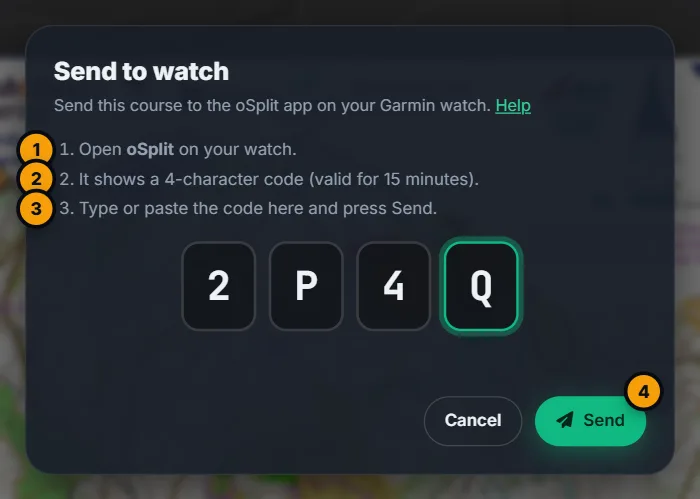
- On osplit.app, open the course, start the replay and open the More menu. Choose Send to watch.
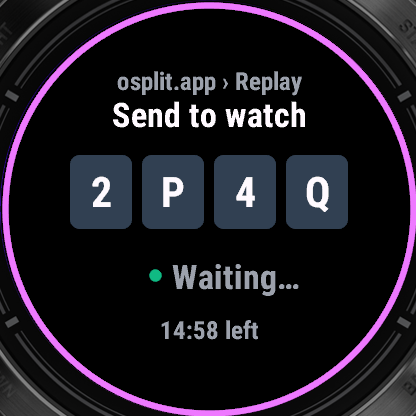
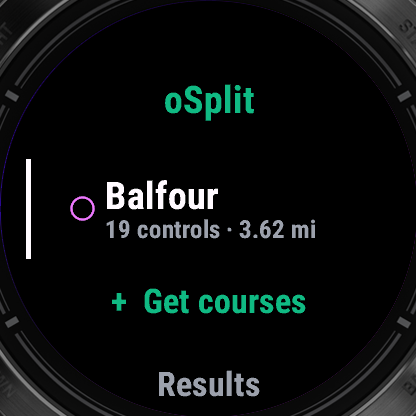
- On the watch, open oSplit and choose Get courses. It shows a 4-character code with a countdown. The code is good for 15 minutes. It never uses 0, O, 1 or I, so it is easy to read.
- Type the code into the dialog on osplit.app and press Send.
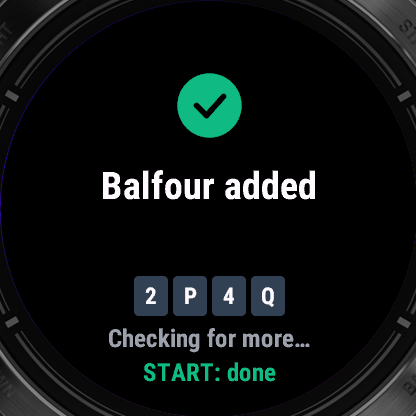
Within a few seconds the watch shows a green tick and Balfour added. It keeps listening for a minute, so you can send a second course to the same code. Press START to go back to the course list.
If it doesn't work:
| The watch says | What it means |
|---|---|
| Code expired | Fifteen minutes passed. Press START for a new code. |
| Connect your phone (Garmin Connect app). | The watch isn't connected to your phone. Connect it, then press START to retry. |
| No answer from osplit.app. | The connection timed out. Press START to retry. |
| oSplit is unavailable. Try again later. | The server had a problem. |
| Too many courses on this code. | Send fewer courses, then get a new code. |
The watch keeps up to 30 courses (the oldest are dropped) and the last 20 results. Sending the same course twice stores it once. The course carries the controls only: there is no map image on the watch.
#Choose a mode
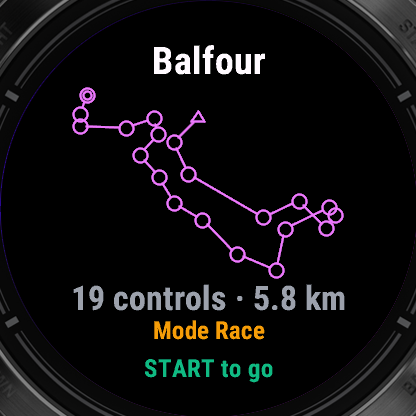
Open a course in the list to see its overprint, the number of controls, the length, and how far you are from the start (once the watch knows where you are).
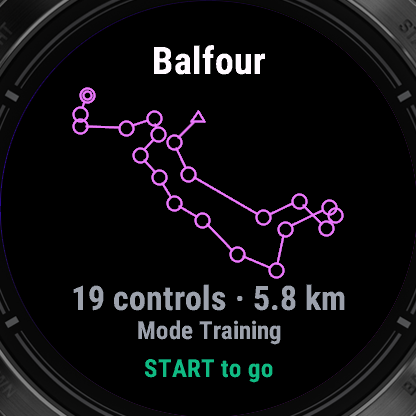
- Training (the default) shows everything: the next control, an arrow and the distance, your splits, a map and a live toast for each punch.
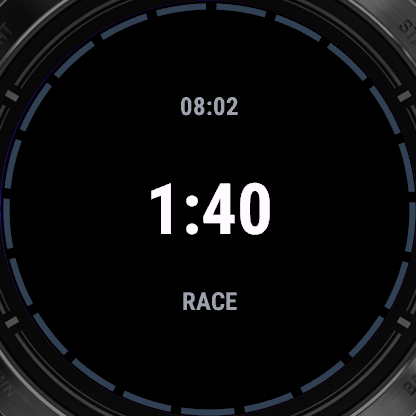
- Race hides the navigation help. You see only the time, with a quiet RACE page, and punches are silent. Use it when you want to find the controls on the map.
Hold UP (the menu button) on this screen to switch Race mode on or off, or to Delete course. You can't change the mode during a run.
#Start a run
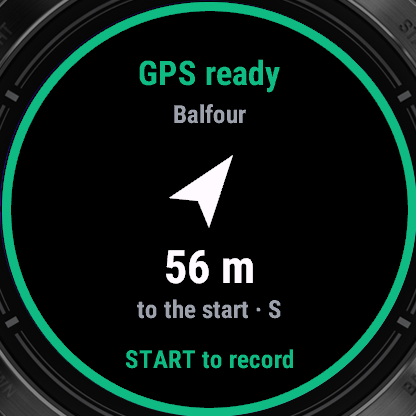
Press START on a course. The ready screen turns the GPS on. The ring round the edge goes from grey while searching, to amber when it is usable, to green when it is good, and the screen shows the distance and direction to the start. Press START again to record. You can start before the GPS is green, as on any Garmin activity.
The buttons while you run:
| Button | What it does |
|---|---|
| UP and DOWN (or swipe) | Previous and next page |
| START | Pauses and opens the run menu |
| BACK | Punches the next control by hand |
| Hold UP | Pauses and opens quick settings for Alerts and Punch radius |
A course ring round the edge shows your progress on every page: a segment for each control, grey to come, purple for the next, green when punched, red when missed.
#The pages
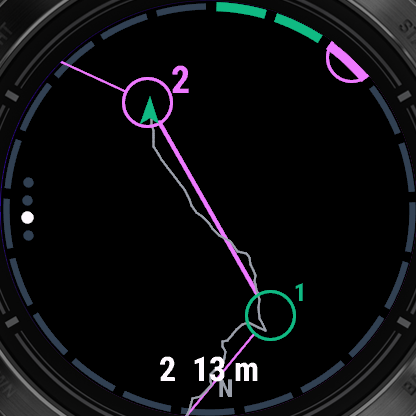
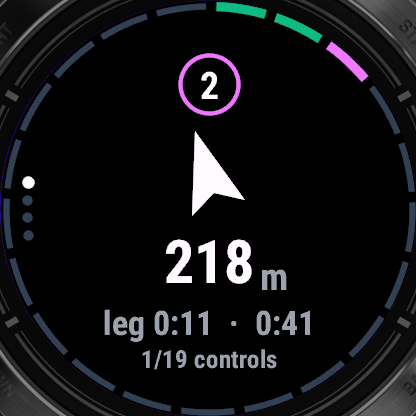
- Navigate: the next control's code, an arrow that points to it, the distance in large type (it turns purple when you are close), your leg time and total time, and how many controls you have done.
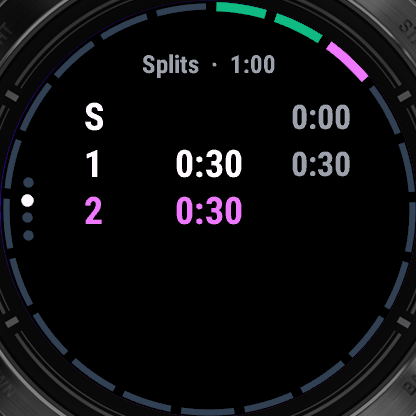
- Splits: a row for each control with the leg time and the time from the start. After a previous run of the same course it shows how far ahead or behind your best you are. A missed control is shown in red with a cross.
- Course map: the controls and legs drawn on a plain background, zoomed to the current leg, turned so the way you are heading is up, with your trail behind you. It is a drawing of the course, not a Garmin map.
- Data: time, distance, pace and heart rate.
In Race mode there is just one page, with the time.
#Punching
You don't touch the watch at each control. The watch punches a control automatically when you pass within the punch radius (40 m by default; choose 15, 25, 40 or 60 m in the settings). It decides a moment after you pass it, when you start to move away from the closest point, so the alert comes a few seconds after the control, and your split is the time of the closest fix.
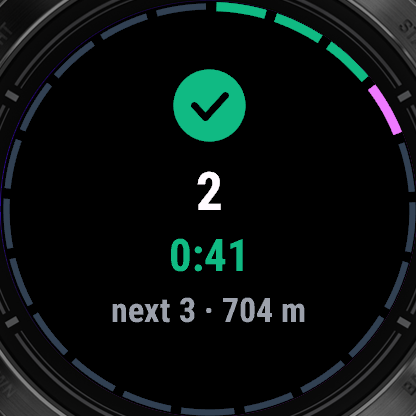
Controls are punched in order. If you reach the control after the next one first, the one you skipped is marked missed. A punch buzzes twice and plays a rising tone, and shows a toast:
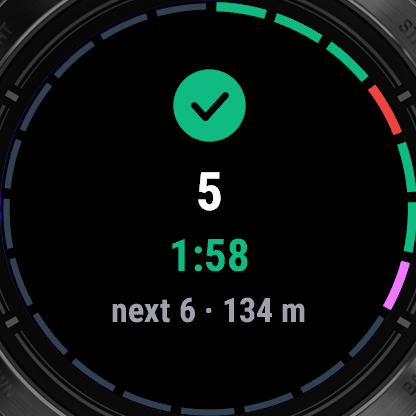
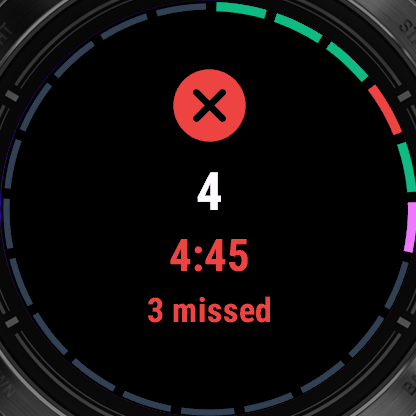
A miss buzzes three long, low pulses. If GPS is lost for 30 seconds, you get one long low buzz.
Missed one? Press BACK to punch the next control by hand, or use the run menu.
#Finish and save
Punching the finish gives a long buzz, then two short, and a Finished toast with your total time and 19/19 controls (or the number missed). The activity keeps recording after the finish, as a cool-down lap, until you save it: the toast says Still recording and START to save.
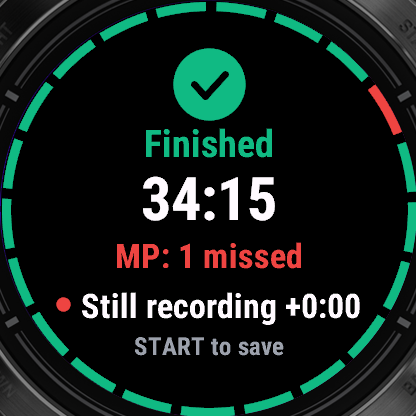
Press START for the run menu:
- Resume carries on.
- Save saves the activity. If you haven't punched the finish it asks first.
- Punch next control and Skip next control fix a missed punch.
- Undo last punch puts the course back to before the last punch, skip or miss.
- Discard throws the run away, after asking twice.
The setting Save at the finish saves automatically when you punch the finish. If you close the app while recording, it saves the activity: you never lose a run.
After saving you see the Summary with your total time, the controls and the distance, and the splits.
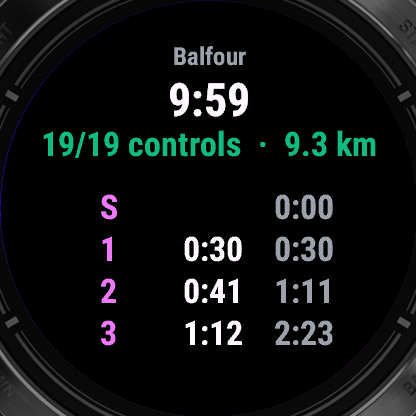
#Results
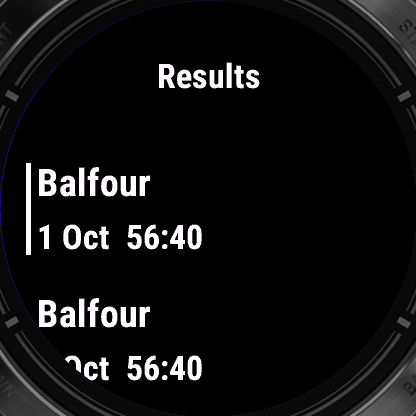
Results on the course list shows your last 20 runs, newest first, with MP after any run where a control was missed. Open one to see its splits. Your best complete run of a course is the one your splits are compared with.
#In Garmin Connect
The run is a normal Garmin activity, a run by default. It has a lap for every control, with the control code on each lap, so you can see your splits in Garmin Connect. Heart rate and the usual sensor data come from the watch. To see the run on its map in oSplit, export the GPX from Garmin Connect and add it to the course: see GPS tracks.
#Settings
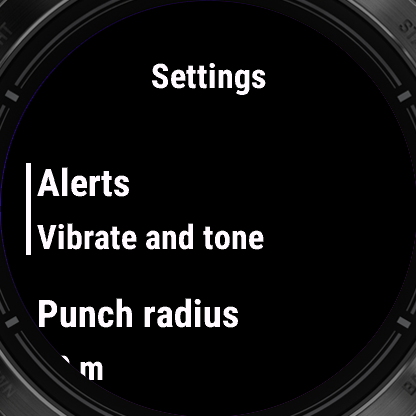
On the watch choose Settings, then press START to change a value. The same settings are in the Garmin Connect IQ phone app.
| Setting | Choices | Default |
|---|---|---|
| Alerts | Vibrate and tone, Vibrate, Tone, Off | Vibrate and tone |
| Punch radius | 15 m, 25 m, 40 m, 60 m | 40 m |
| Approach alert | Off, 50 m, 100 m | Off |
| Default mode | Training, Race | Training |
| Activity type | Run, Trail run, Hike, Walk | Run |
| GPS | Best available, All systems, SatIQ | Best available |
| Save at the finish | on, off | Off |
| Race: pulse on punch | on, off | Off |
The approach alert gives one soft pulse as you get near each control. Distances follow your watch's own unit setting.
#Good to know
- You run one course at a time, in order. Score courses aren't supported.
- There is no map image on the watch, only the course drawing.
- A run isn't sent back to osplit.app by the watch. Export the GPX from Garmin Connect and add it on osplit.app.
- Garmin Connect has no orienteering sport, so the activity is a run by default.
- In a forest, GPS can be 10 to 30 m out. That is why the punch radius is 40 m by default. If you are punching too early or too late, try another radius.
- Race mode only hides help on the watch. It is a convenience: you still follow your event's rules.