
Record, print and share
Record a video of a replay, print a map to scale, download the map files, and copy a link.
All of these are in the replay's More menu (the three dots), and in the command palette (Ctrl + K).
#Record a video
Choose Record video (V). oSplit records the replay as it plays and saves a video file to your computer.
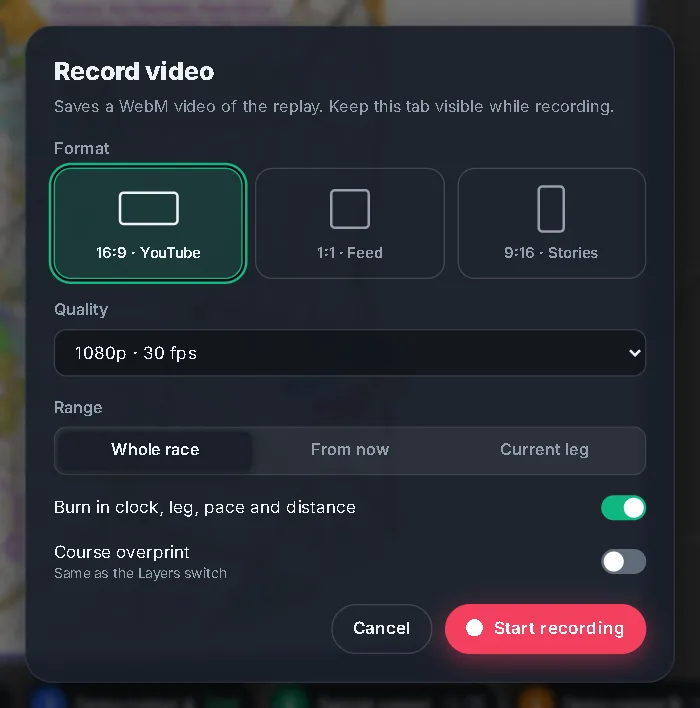
- Format: 16:9 · YouTube (1920 × 1080 at 1080p), 1:1 · Feed (1080 × 1080) or 9:16 · Stories (1080 × 1920). Wider formats show more of the sides of the map; the portrait format is a vertical strip.
- Quality: 720p · 24 fps, 1080p · 30 fps (the default), 1080p · 60 fps or 1440p · 60 fps.
- Range: Whole race, From now, or Current leg (which needs a runner you are following).
- Burn in clock, leg, pace and distance adds a panel at the bottom left with the clock and the figures for the runner you follow.
- Course overprint is the same setting as in Map layers.
Press Start recording. The dialog closes and the replay plays at its current speed, so the video lasts about the race time divided by the speed. A REC bar shows the time, with Stop & save. It stops by itself at the end.
The video is a WebM file with no sound, saved as <course title>-replay.webm. It needs a recent Chrome, Edge or Firefox. If your browser can't record, the dialog says so.
#Print to scale
Choose Print to scale (P) in the replay, or Print on the course's page, to print the map at a chosen scale on paper.
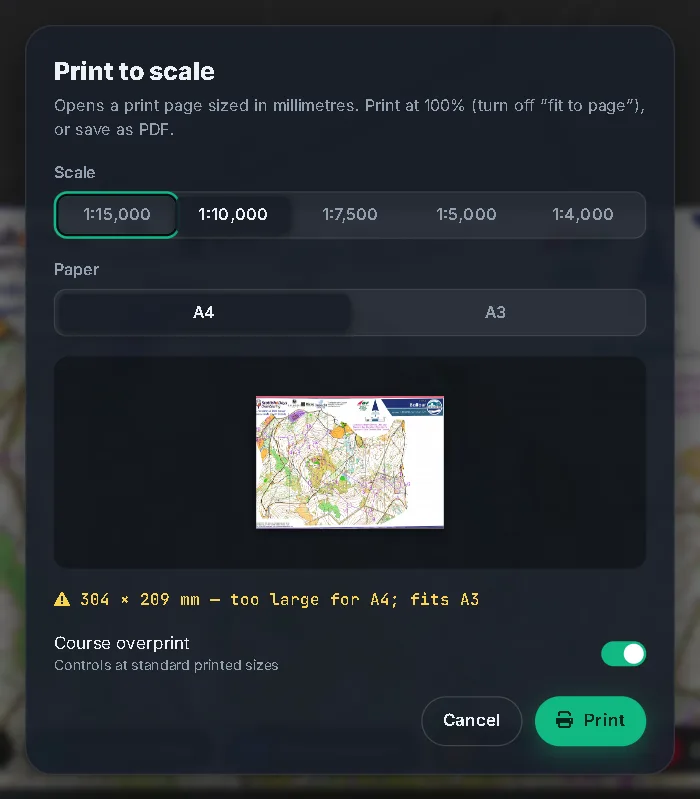
- Scale: 1:15,000, 1:10,000 (the default), 1:7,500, 1:5,000 or 1:4,000.
- Paper: A4 or A3. The page turns to landscape or portrait by itself. The preview tells you whether the map fits, for example fits A3 landscape. When the map is bigger than the paper, it is printed at the true scale and cropped around the course, and the preview says so. It warns only when the course itself is too large, and then suggests a bigger paper or a smaller scale.
- Course (only when the map is flipped) prints the Whole course or one Part.
- Course overprint draws the controls at standard printed sizes in print purple. The runners and tracks are not printed.
Print opens a page in a new tab and calls your browser's print dialog. In it, print at 100% and turn off "fit to page", or the scale will be wrong. To make a PDF, choose "Save as PDF" in that dialog. If nothing opens, allow pop-ups for the site.
The scale is only as good as the map's alignment: the map fit on the course's page tells you how well it was matched to the ground.
#Download the map files
Download map files saves two files: the warped map image and its .json metadata. Keep them to open the course later with Open files, or to move it to another computer.
#Copy a link
Copy link at this moment copies an address that opens the replay at the same time. See Replay a race for what the link remembers.
#Send to a watch
Send to watch sends the course to the oSplit app on a Garmin watch. It is in the replay's More menu and on the course's page. See The Garmin watch app.