
oSplit in two minutes
Replay races on the real map, and turn a scanned orienteering map into one. Here is what oSplit does, and where to learn more.
oSplit puts orienteering races on the real map. Watch every runner's GPS track move across the map, see where time was won and lost, and make a map of your own from a scan. It all runs in your browser, and you don't need an account to look around.
#What you can do
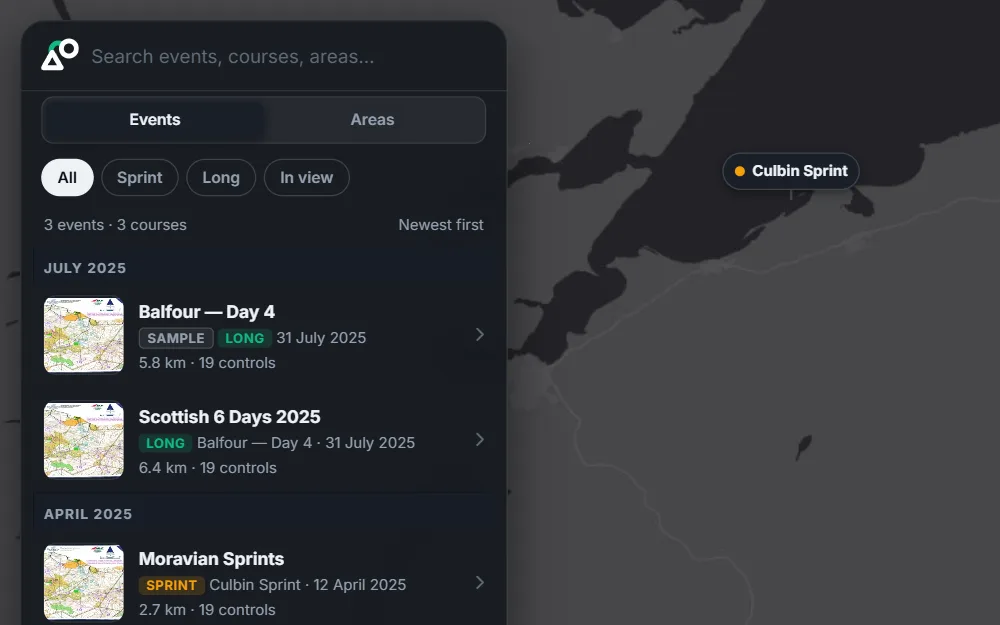
#Explore the library
Browse orienteering maps on a world map, or search by name, area or event. The Balfour sample is always there, with four runners to watch.
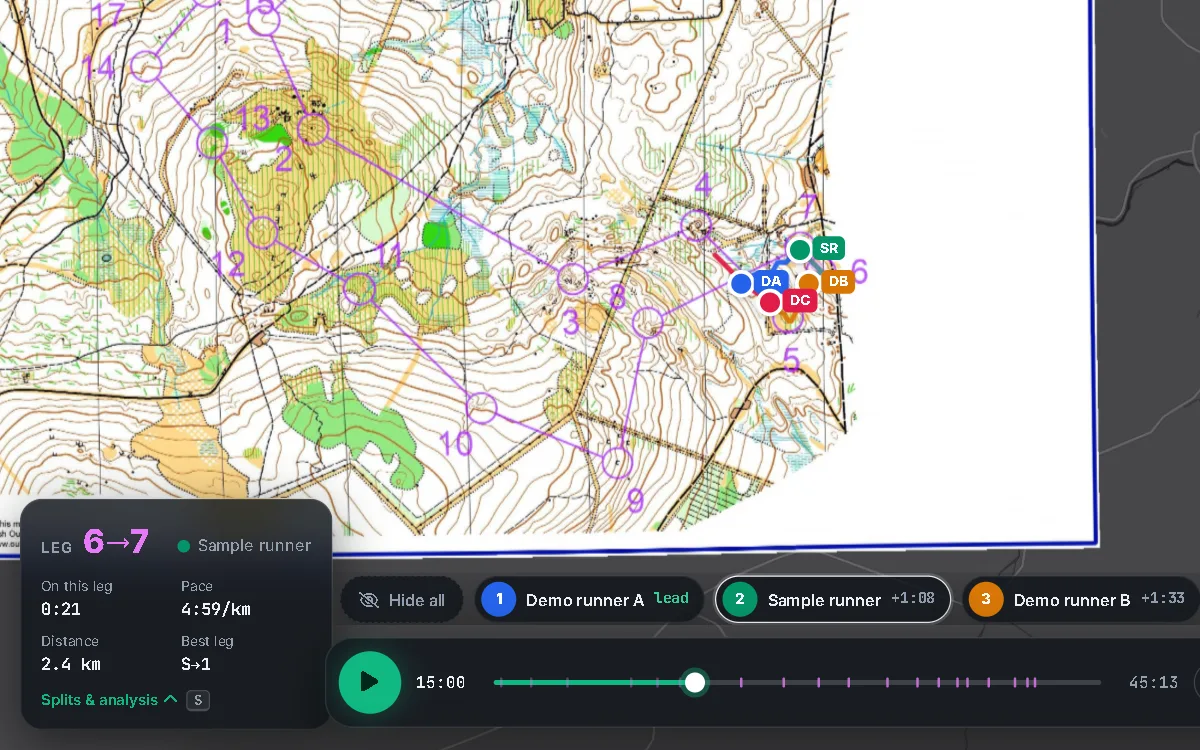
#Replay a race
Watch several runners at once on a time-based clock. Follow one runner, turn the map to their heading, and share a link to any moment.
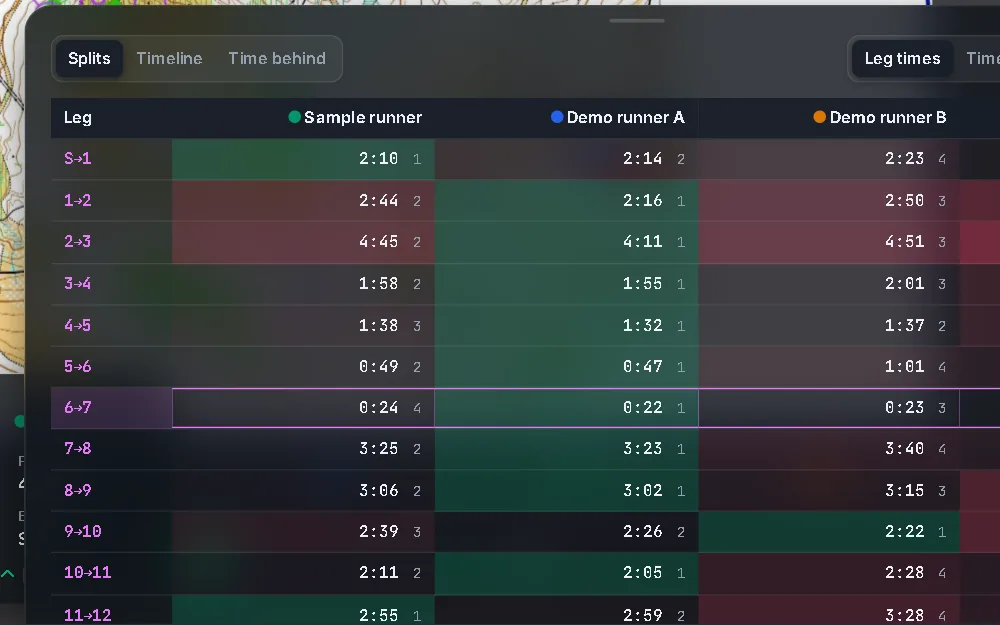
#Splits and analysis
Splits for every leg, the time lost on each, a timeline, and a chart of time behind the leader.
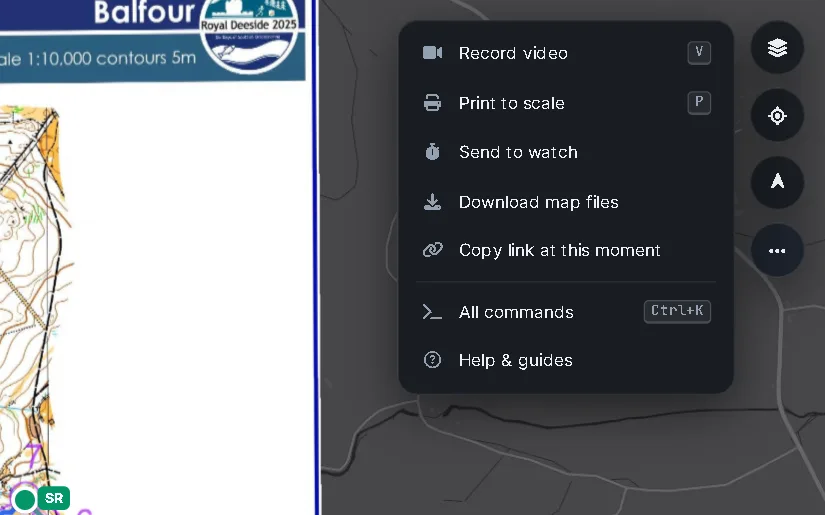
#Record, print, share
Record a video, print the map to scale, or copy a link that opens at the exact moment you are watching.
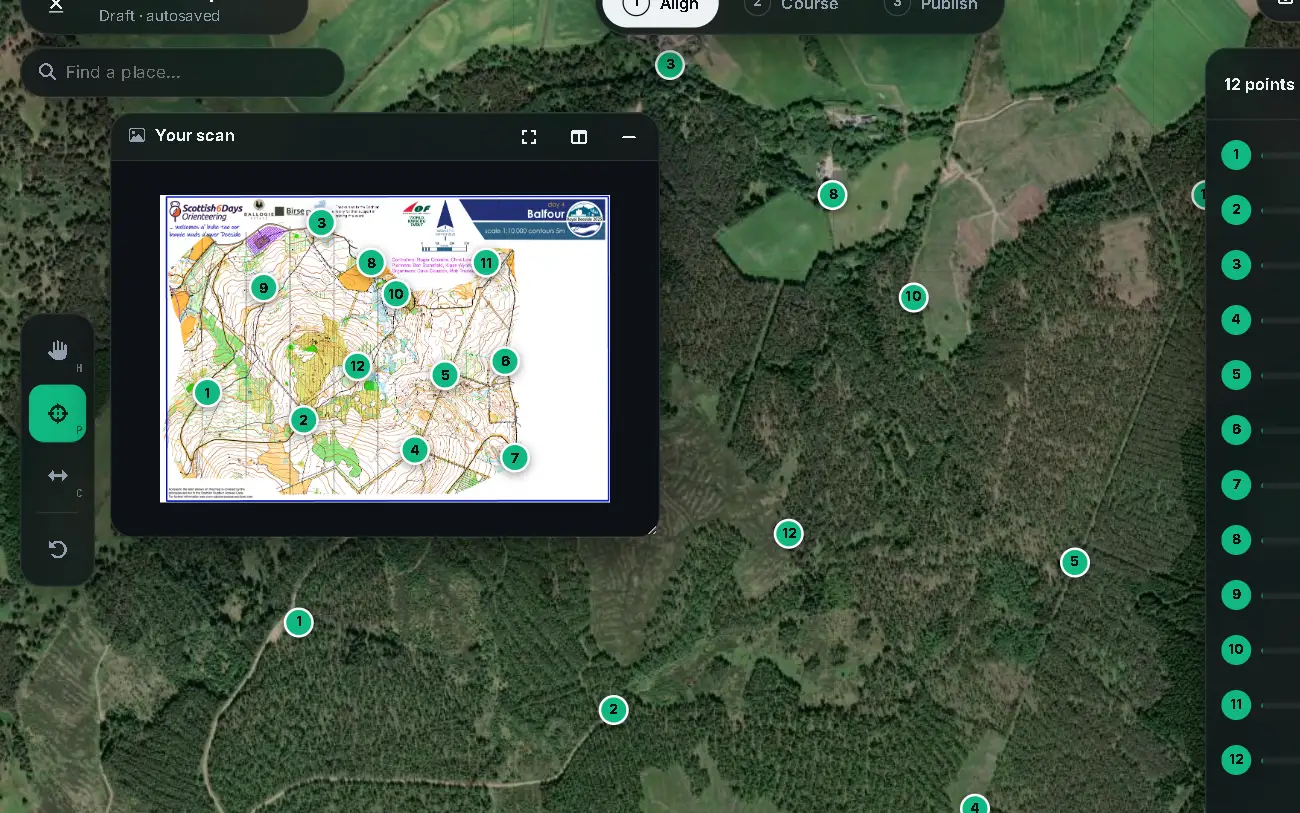
#Make a map
Match a scan to satellite imagery, check the fit, add the course and publish. Or import an event from RouteGadget, or draw a street-O map from OpenStreetMap.
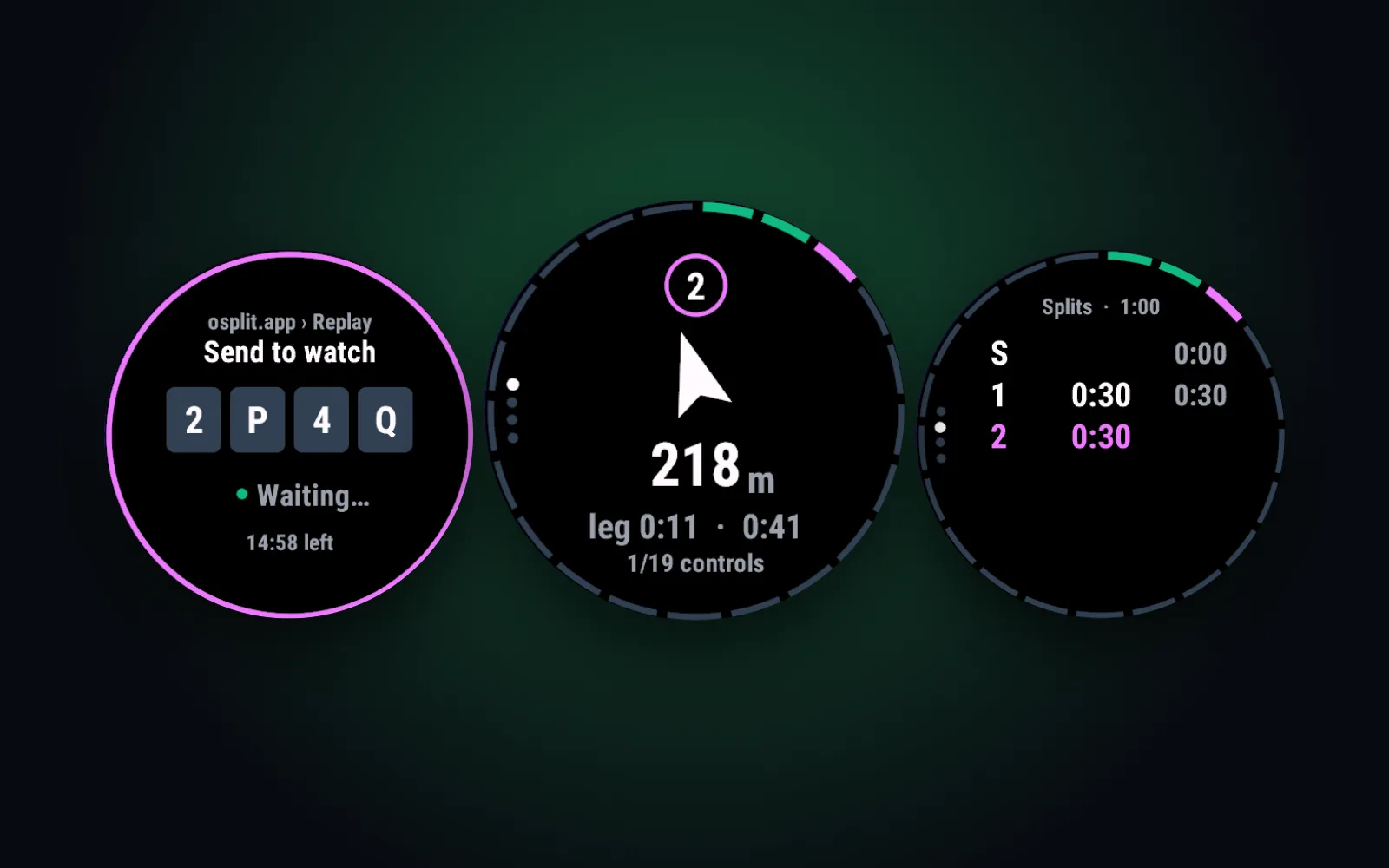
#Garmin watch
Send a course to the oSplit app on your Garmin watch, and punch the controls as you run. The app is coming soon to the Connect IQ store.
#Quick starts
#Replay a race in a minute
Open a course, press Replay race and play.
#Add your GPS track
Drop a GPX or CSV file onto a course to see yourself on the map.
#Make a map from a scan
From a scanned map to a published course.
#Send a course to your watch
Type the code from your watch and press Send.
#Good to know
- You don't need an account to look at maps, replay races or use the Studio. Sign in to keep what you publish in one place and share it.
- Your GPS tracks stay on your device unless you choose to share them with a course.
- Press Ctrl + K (⌘ + K on a Mac) for every command, and ? for the keyboard shortcuts.
- Stuck? See Questions and problems. New features are listed in What's new.
- The Studio, where you make maps, needs a computer. Replay works on phones too.
- Use a recent Chrome, Edge or Firefox.