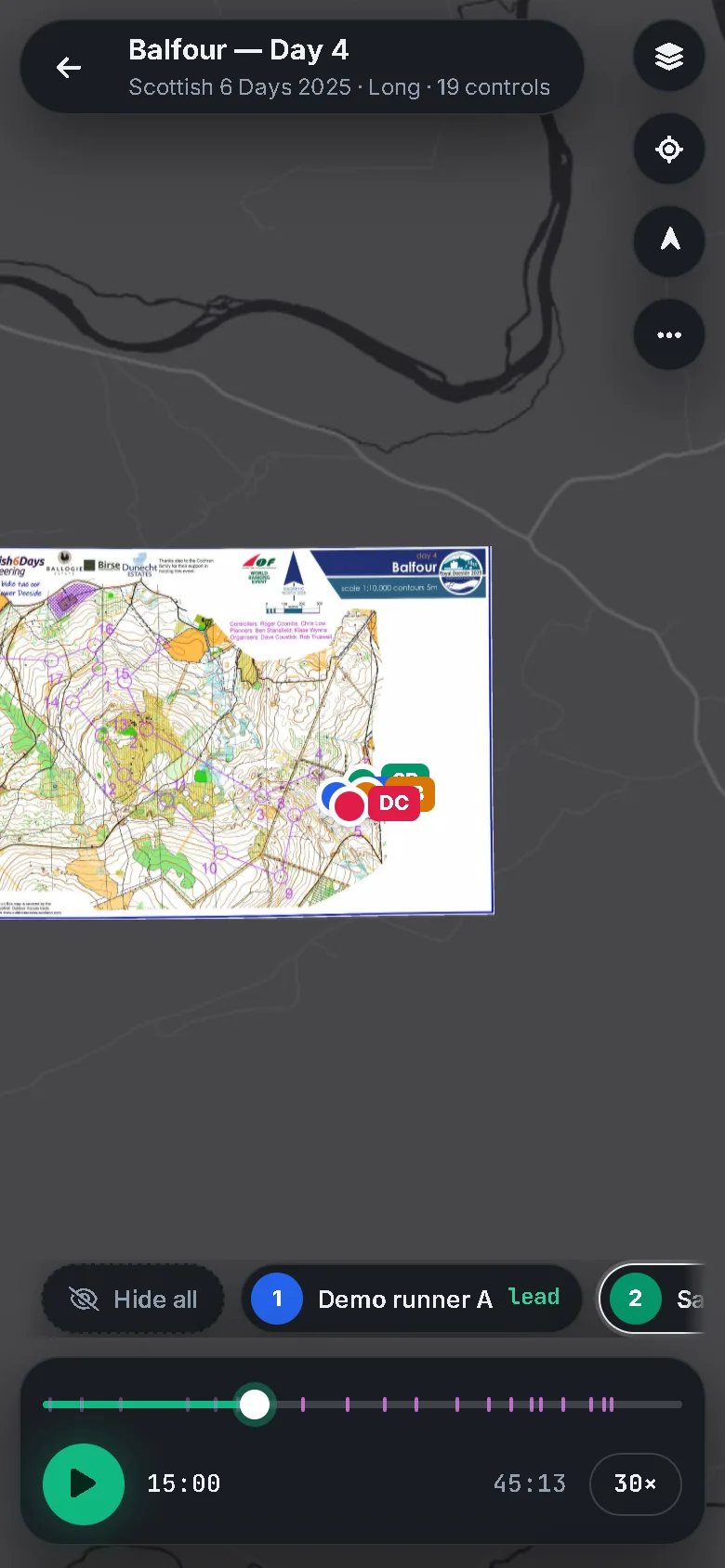
Replay a race
Watch runners move over the real map, follow one, turn the map, change the background and share a link to any moment.
Press Replay race on a course's page. Every runner's GPS track plays on one clock over the map, with live standings and the course drawn on top.
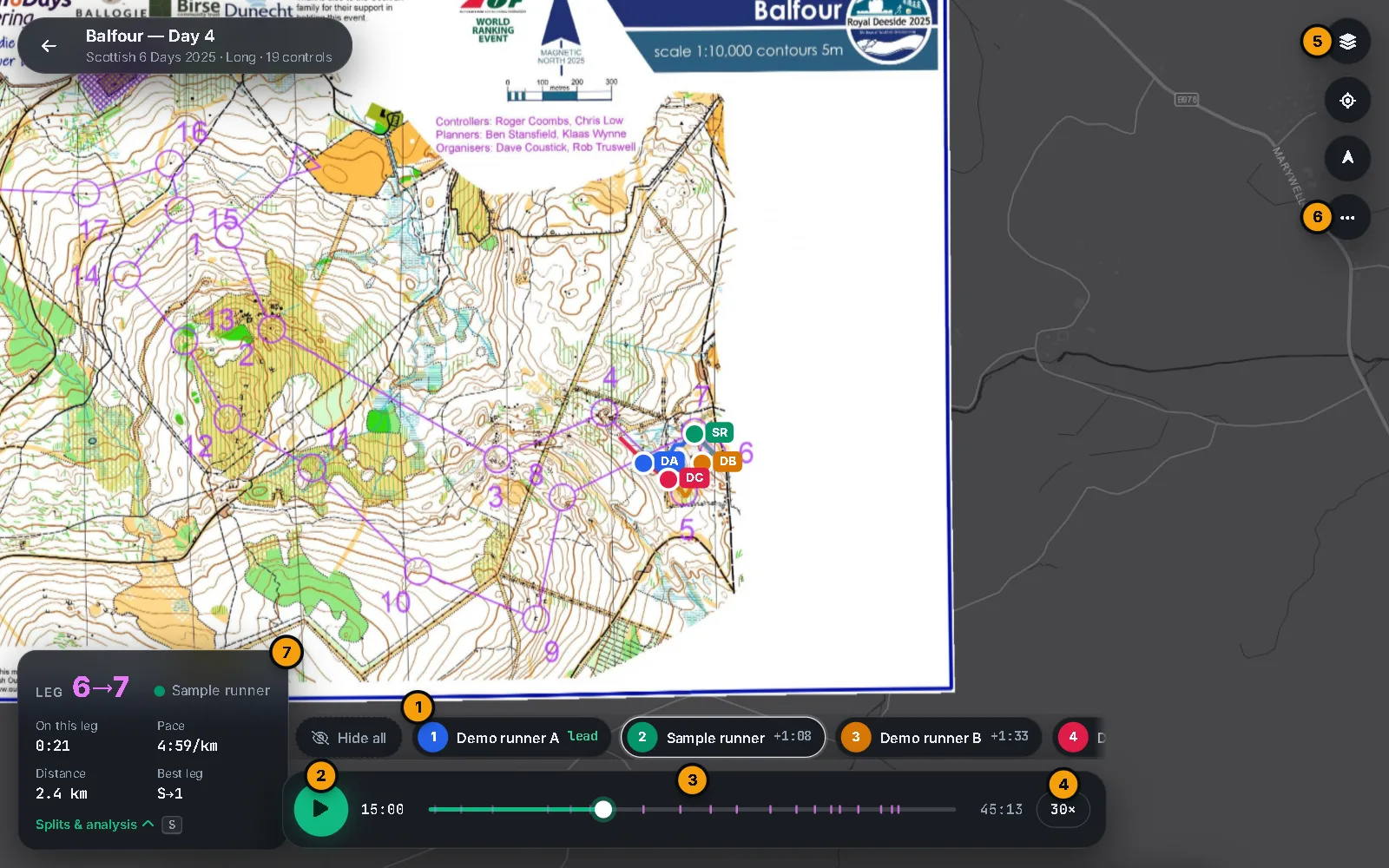
#Play and move through time
- Play and pause with the round button or Space.
- The race clock at the bottom runs from the first start to the last finish. Click or drag it to jump. Small ticks mark the controls punched by the runner you follow. Hover to see the time and the leg.
- Speed is 1×, 5×, 15×, 30× (the default), 60× or 120×. Click the speed chip to step up; at 120× it goes back to 1×. The keys
[and]make it slower and faster. - ← and → jump 30 seconds; Shift + ← and Shift + → jump 5 seconds.
- N and B jump to the next and the previous control for the runner you follow. In the command palette (Ctrl + K), Jump to control 5, Jump to start and Jump to finish do the same.
#Runners and standings
- The row of chips above the clock lists the runners in live standing: most controls punched first, then the earliest time at the last one. Each chip shows a rank, the name, and lead or the gap to the leader (+1:08) at that runner's last control. Times are counted from each runner's own start punch, so late starters are not penalised.
- Click a chip to follow that runner. 1 to 9 follow the runner in that position.
- The eye on a chip hides or shows that runner on the map. Hide all and Show all do it for everyone.
- Four runners get a colour: green, blue, amber and rose. With more than four runners, only four are coloured (the top three at the finish and the runner you follow) and the rest are grey. Choose who is coloured with Select runners…, or press Top 3.
- Under the chips, the leg card shows the runner you follow: the leg, the time On this leg, Pace over the last 40 seconds, Distance run so far and Best leg, the latest leg where that runner was fastest of everyone.
#The camera
- Follow (F) keeps the followed runner in the middle of the map. Dragging the map turns it off; the button, F or a click on a chip turns it on again.
- Heading-up (R) turns the map so the direction of travel points up. It follows the bearing of the current leg, and turns Follow on.
- Fit course (in the command palette, or double-click the title at the top left) shows the whole map and turns both off.
#Layers
Open Map layers (L) to change what you see.
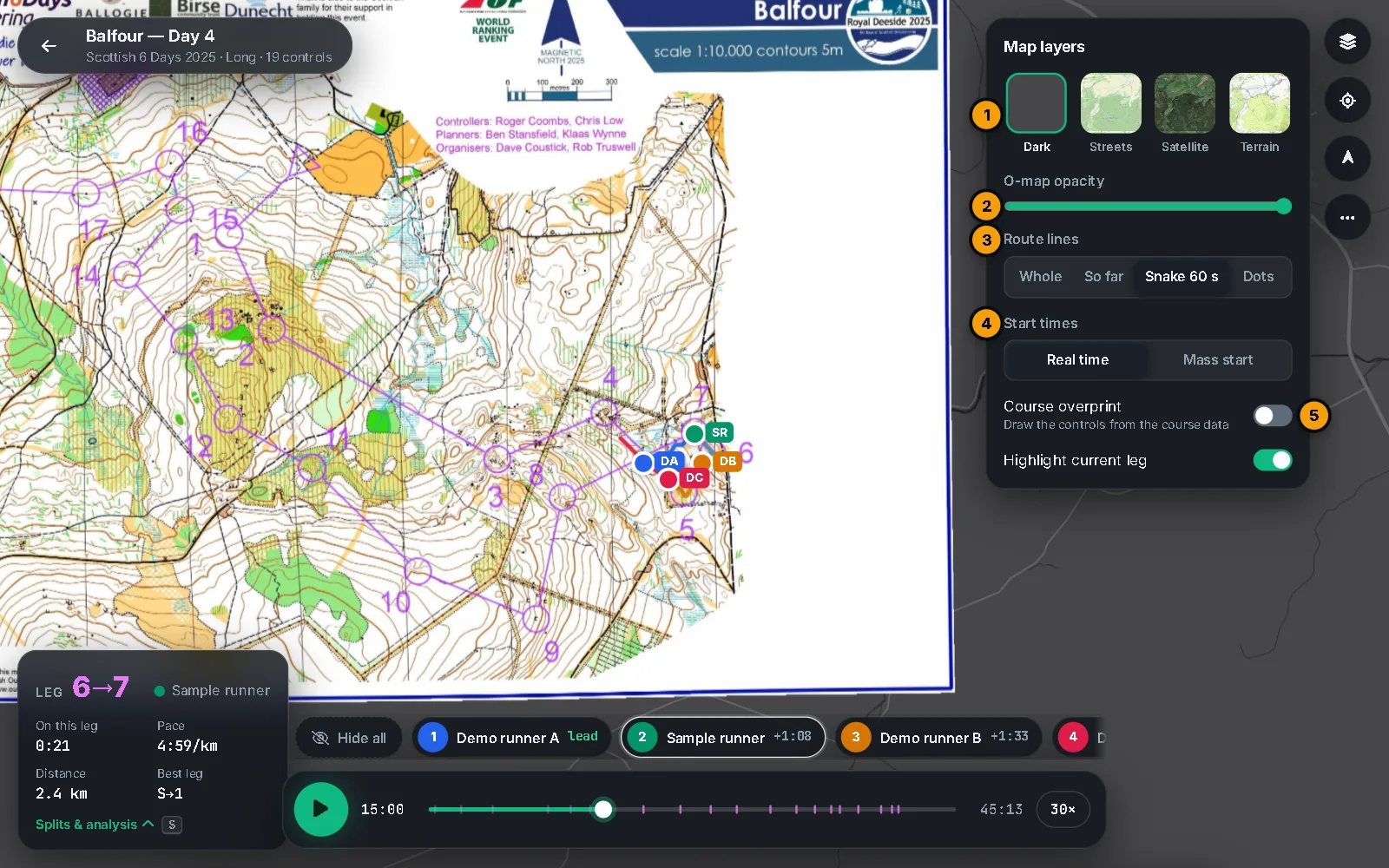
- Background map: Dark, Streets, Satellite or Terrain.
- O-map opacity fades the orienteering map so you can see what is under it.
- Route lines:
- Whole shows each runner's complete route all the time;
- So far shows the route up to now;
- Snake 60 s (the default) shows only the last minute;
- Dots shows just the runners.
- Start times:
- Real time plays everyone at their actual times, so late starters appear late;
- Mass start lines up every runner's start so they all leave together, which is the best way to compare route choices.
- Course overprint draws the controls and legs from the course data. It starts on, unless the course was printed on the map scan itself.
- Highlight current leg draws a thick line along the leg of the runner you follow.
- Course part appears when the course has map flips, and lets you show one part of the course at a time. Auto shows the part the followed runner is on.
#Share this moment
Open the More menu (the three dots) for the ways to take the replay out of the page.
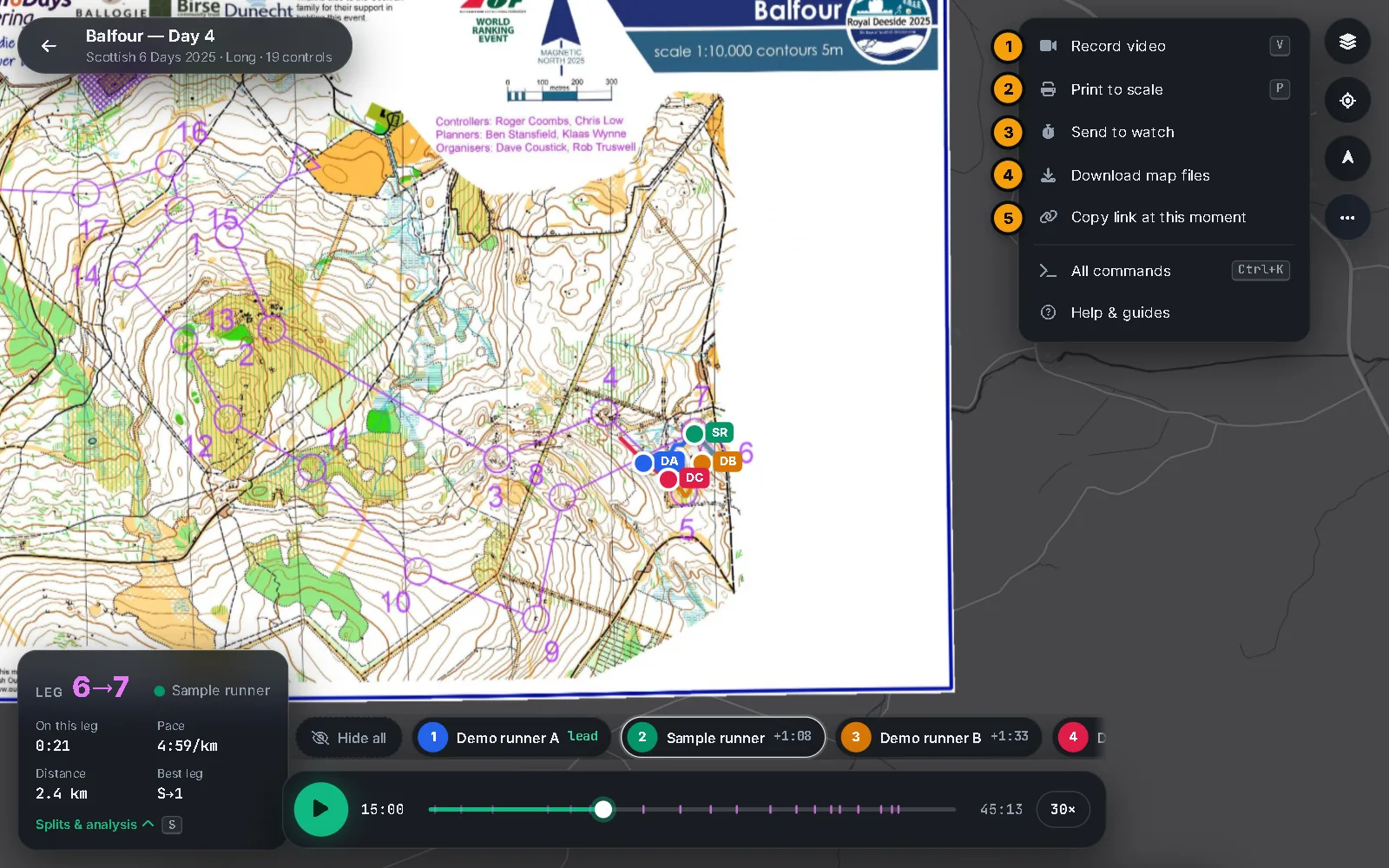
Copy link at this moment copies an address that opens the replay at the same time, with the same runner followed. It also remembers the speed, heading-up and the route-line style. It does not remember the background map, opacity or which runners are hidden.
The other items are covered in Record, print and share.
#Without tracks
If a course has no tracks yet, the replay shows the map and the course with a bar that says No GPS tracks yet. Choose Add track, drop GPX or CSV files anywhere on the page, or Load sample. See GPS tracks.
#On a phone
Replay works on a phone. The leg card is smaller, and hidden on the narrowest screens.