
Quick start
Six short walk-throughs, each a few steps. Pick the one you need.
#Replay a race
- Open oSplit. Courses are pins on the map, one for each map, with a count of its courses. Pick one, or search by name, area or event. To try it first, choose the Balfour sample.
- Press Replay race.
- Press Space to play. Click a runner to follow them, press S for splits and analysis, and R to turn the map to the runner's heading.
- Open the More menu (the three dots) to record a video, print the map, send the course to your watch, or copy a link to the exact moment you are watching.
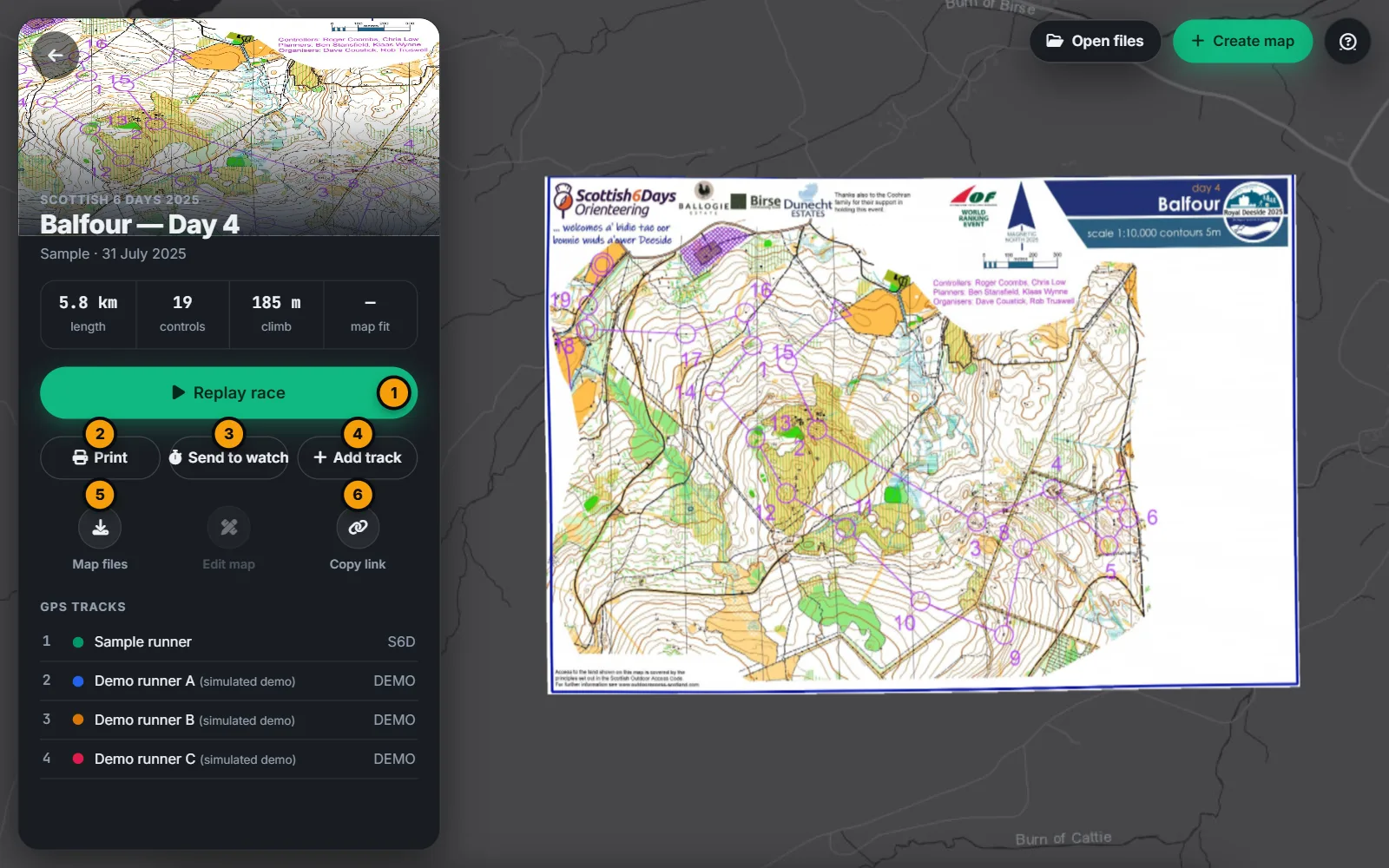
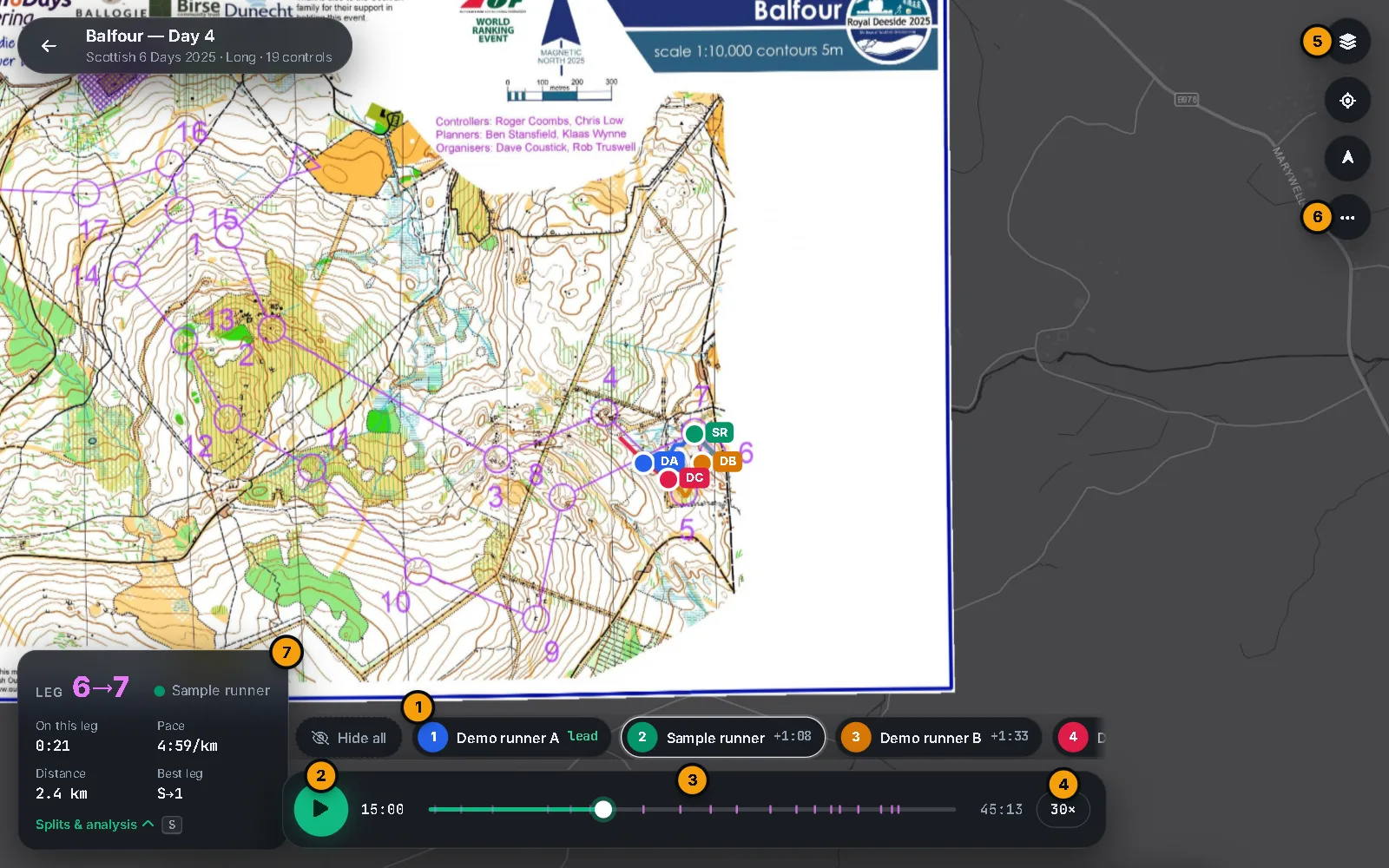
More: Explore the library, Replay a race and Splits and analysis.
#Add your GPS track
- Open a course and press Replay race.
- Press Add track, or drop GPX or CSV files anywhere on the page.
- Your track appears as a new runner. It stays on your device.
- To share it with the course, switch on Share with this course, type the runner name and choose who can see it. Only the part of your run over the map, plus 300 m, leaves your device.
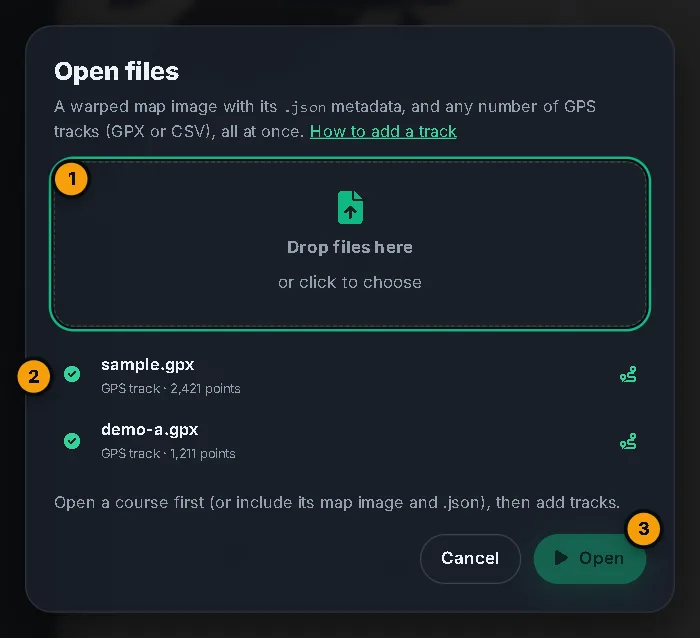
More: GPS tracks, including sharing a track with a course.
#Make a map from a scan
- Press Create map at the top right of the home page. This opens the Studio.
- Drop your scan (JPG, PNG or WebP) anywhere, or press Use sample to try it.
- Align. Click a spot on one map, then the same spot on the other. Add points near the corners for a better fit. After three points the fit is live, and the pill shows the typical error in metres.
- Course. Place the start, the controls and the finish on your map. You can skip this and add courses later.
- Publish. Choose Public (listed), Unlisted (only people with the link) or Private. Sign in to publish to your account.
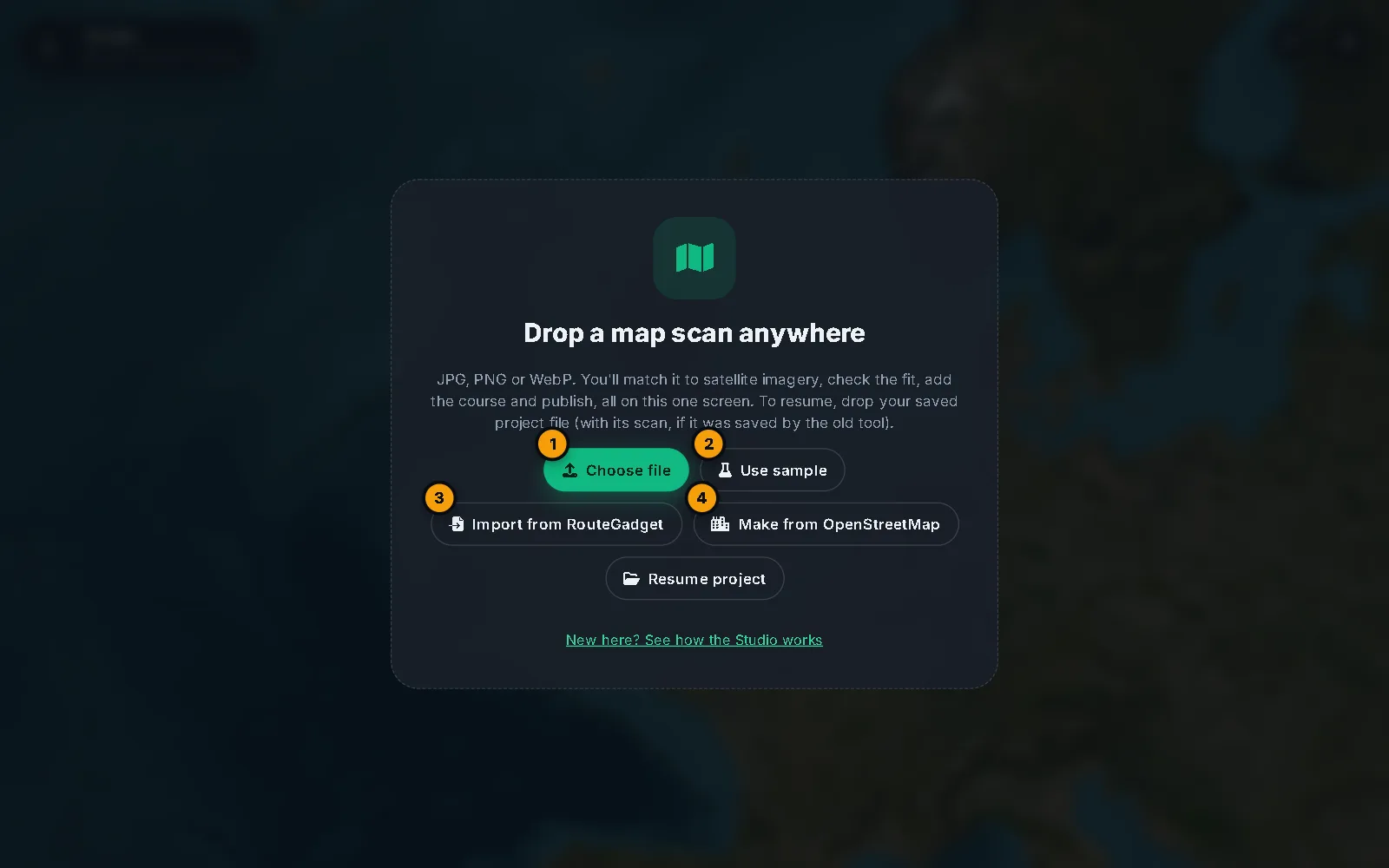
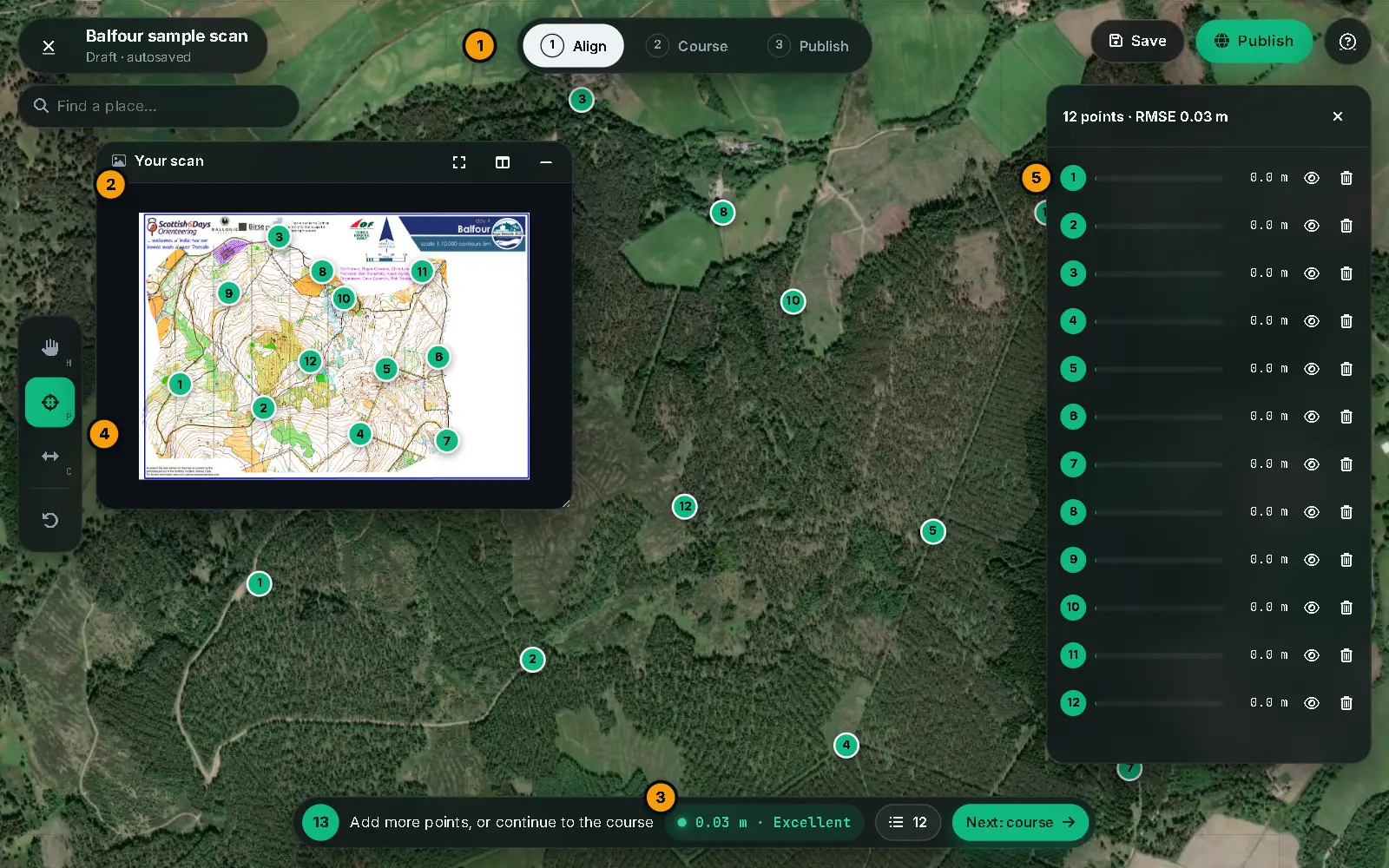
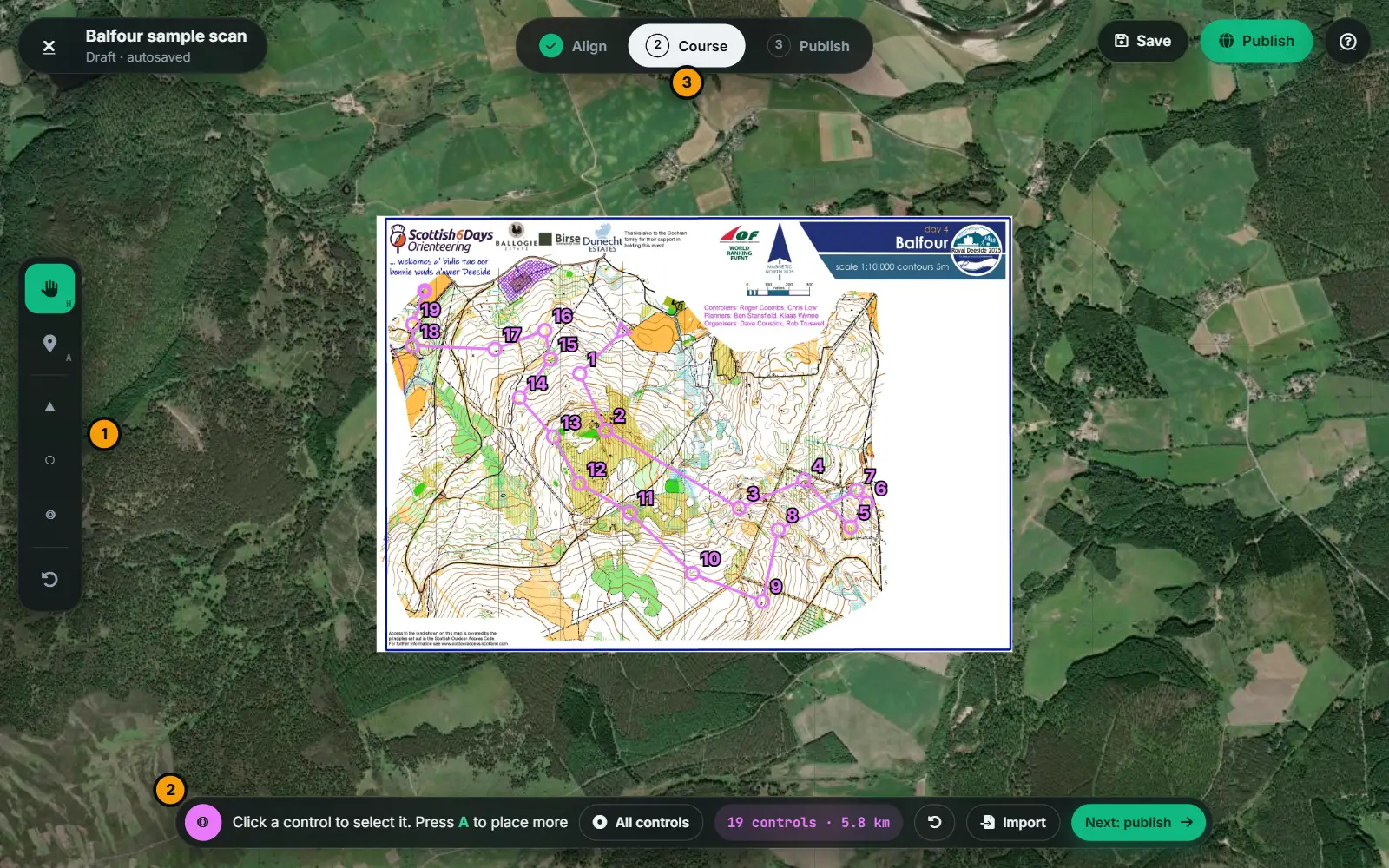
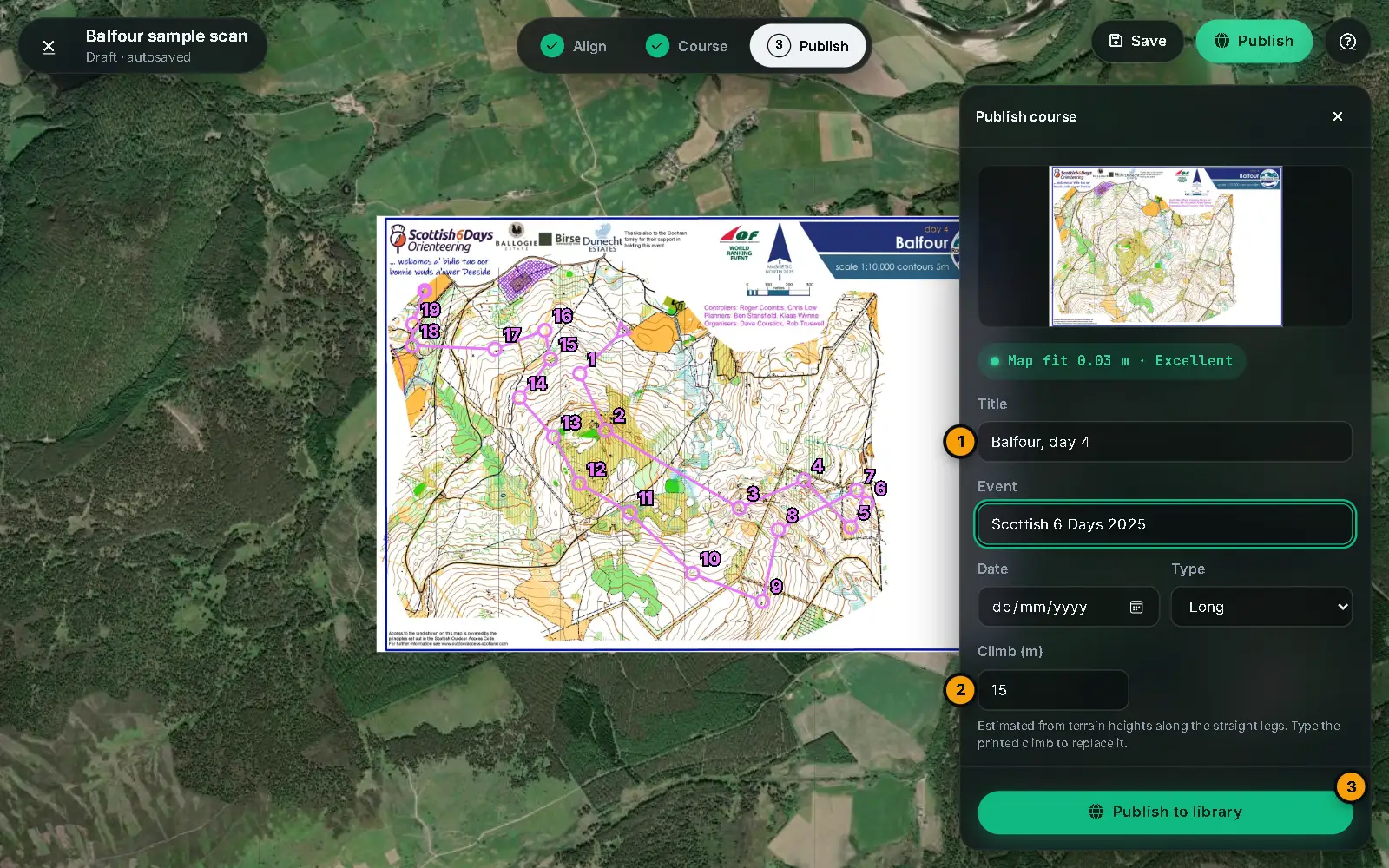
More: The Studio and aligning a scan, Draw the course and Publish a map or a course.
#Make a street-O map
For a quick urban map when you have no scan. You need to be signed in.
- Open the Studio and press Make from OpenStreetMap.
- Draw a rectangle on the map: at most 3 km a side and 4 km². Pick a scale, and whether private land is out of bounds.
- Preview the map, then press Use this map. The Studio opens at the Course stage.
- Place the start, controls and finish, and publish.
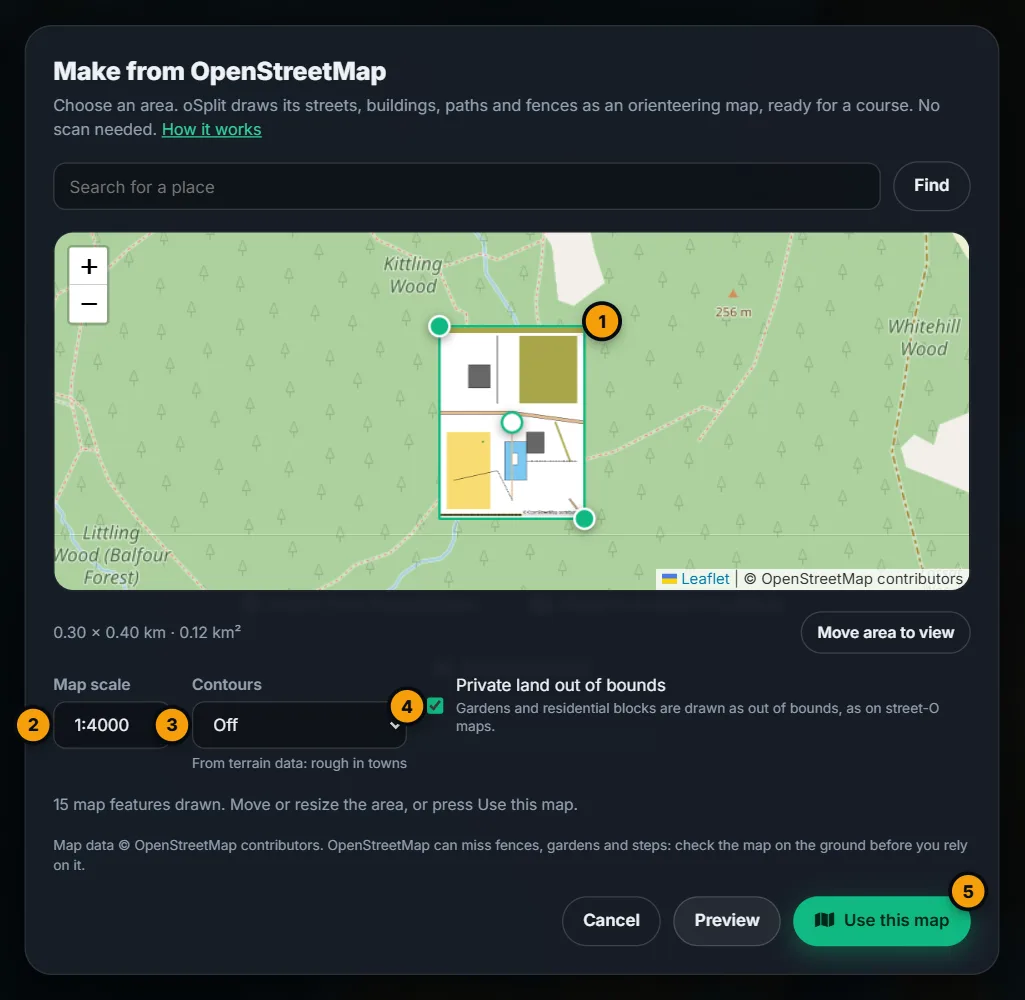
The map credits © OpenStreetMap contributors, drawn into the image. More: Street-O map from OpenStreetMap.
#Import from RouteGadget
You need to be signed in.
- Open the Studio and press Import from RouteGadget.
- Paste the link to an rg2 event and choose its courses.
- The map comes in as your scan. If the event has a world file, nine matching points are placed for you: check them in the Align stage.
- Publish. This makes the map, each course you chose, and the GPS routes as shared tracks. Hand-drawn routes aren't imported.
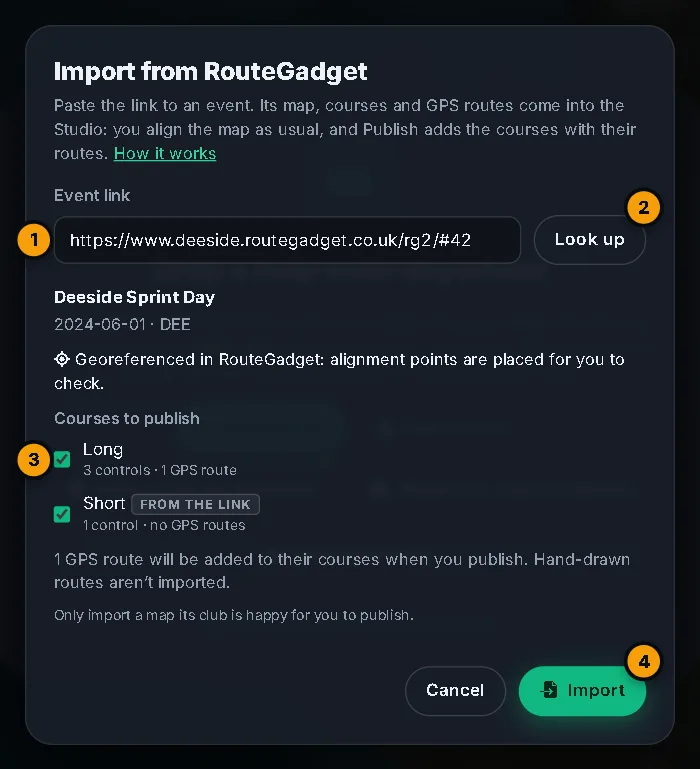
More: Import from RouteGadget.
#Send a course to your watch
- Open the course in oSplit, open the More menu and choose Send to watch.
- On your Garmin watch, open oSplit and choose Get courses. It shows a 4-character code, valid for 15 minutes.
- Type the code in the dialog and press Send. The course appears on your watch in a few seconds.
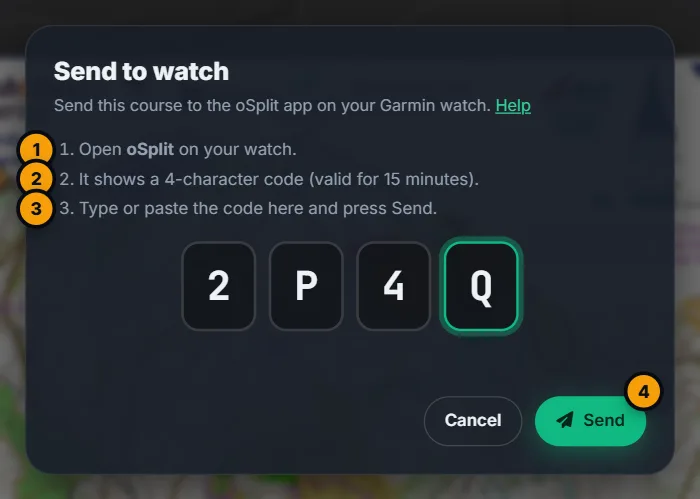
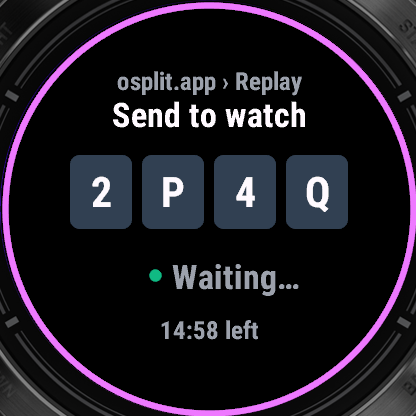
More: The Garmin watch app, including running a course and the settings.