
The Studio and aligning a scan
Match a scanned map to satellite imagery, read the fit, and fix points that are off.
The Studio is where you turn a scan into a map oSplit can replay on. It is one screen with three stages: Align, Course and Publish. You need a computer: on a phone the Studio only says that it needs a larger screen.
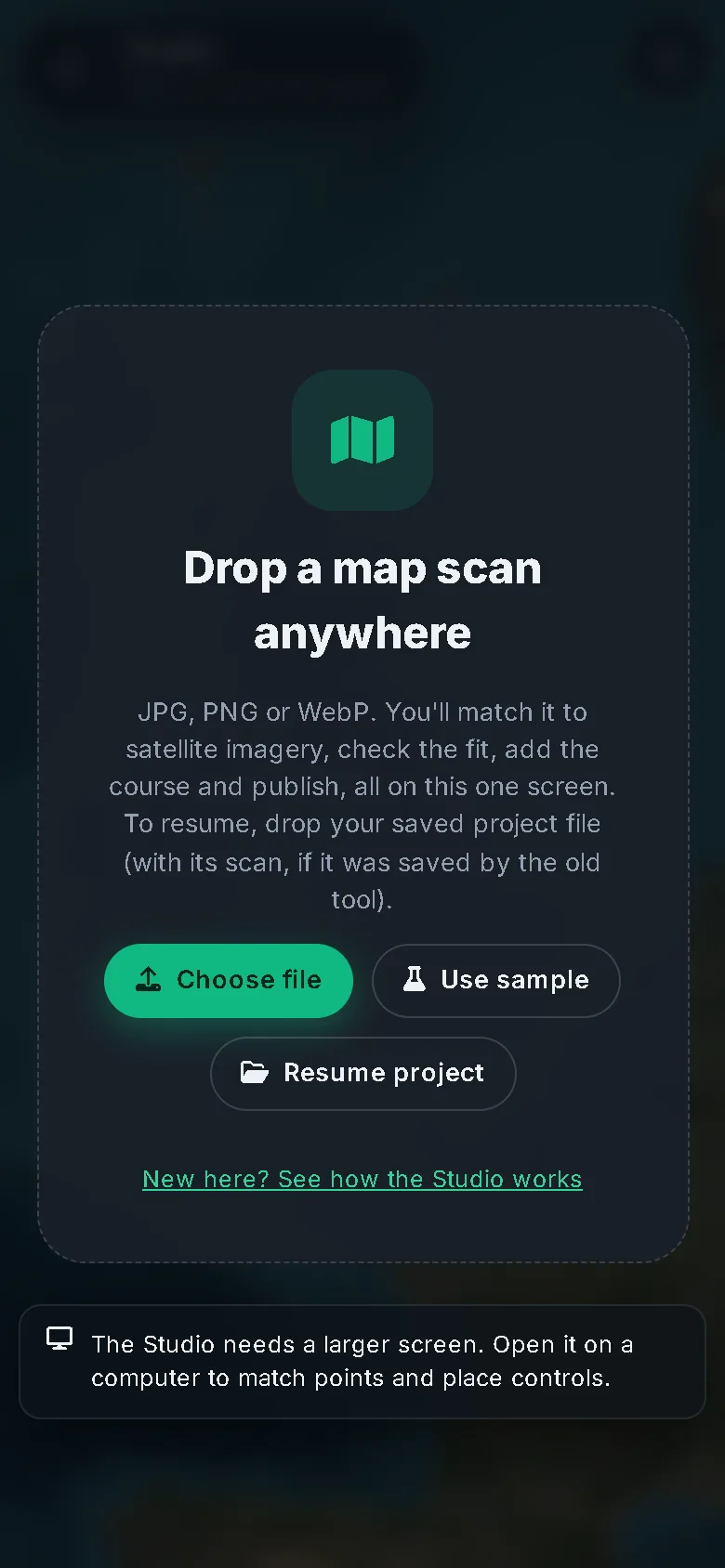
Press Create map on the home page to open it.
#Start
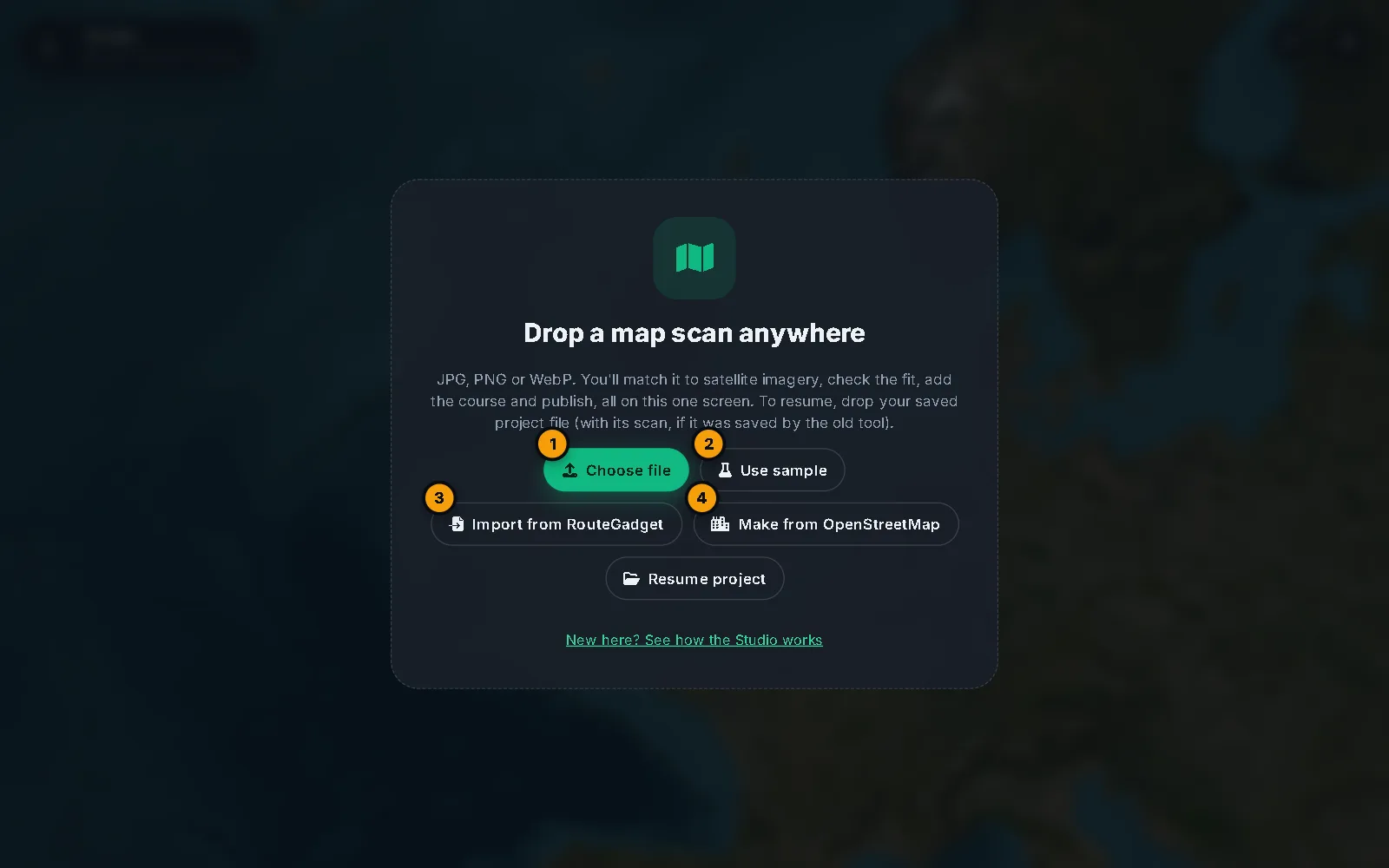
- Drop a scan anywhere on the page, or press Choose file. Use a JPG, PNG or WebP picture of your map.
- Use sample loads a scan of the Balfour map so you can try everything.
- Resume project opens a project file you saved (see below). If this browser holds a draft, a Continue card offers it.
- Import from RouteGadget and Make from OpenStreetMap start from an event or from OpenStreetMap, with no scan. They need you to be signed in: see Import from RouteGadget and Street-O map from OpenStreetMap.
#Your work is safe
Every change is saved in your browser as you go: the top left says Draft · autosaved. Save (or Ctrl + S) also downloads a project file with the scan inside. Drop that file back in to carry on, on this or another computer. Ctrl + Z undoes, Ctrl + Shift + Z or Ctrl + Y redoes.
Project files from the old alignment tool work too: drop the file together with its scan.
#Align
You match point pairs: the same spot on your scan and on the satellite map.
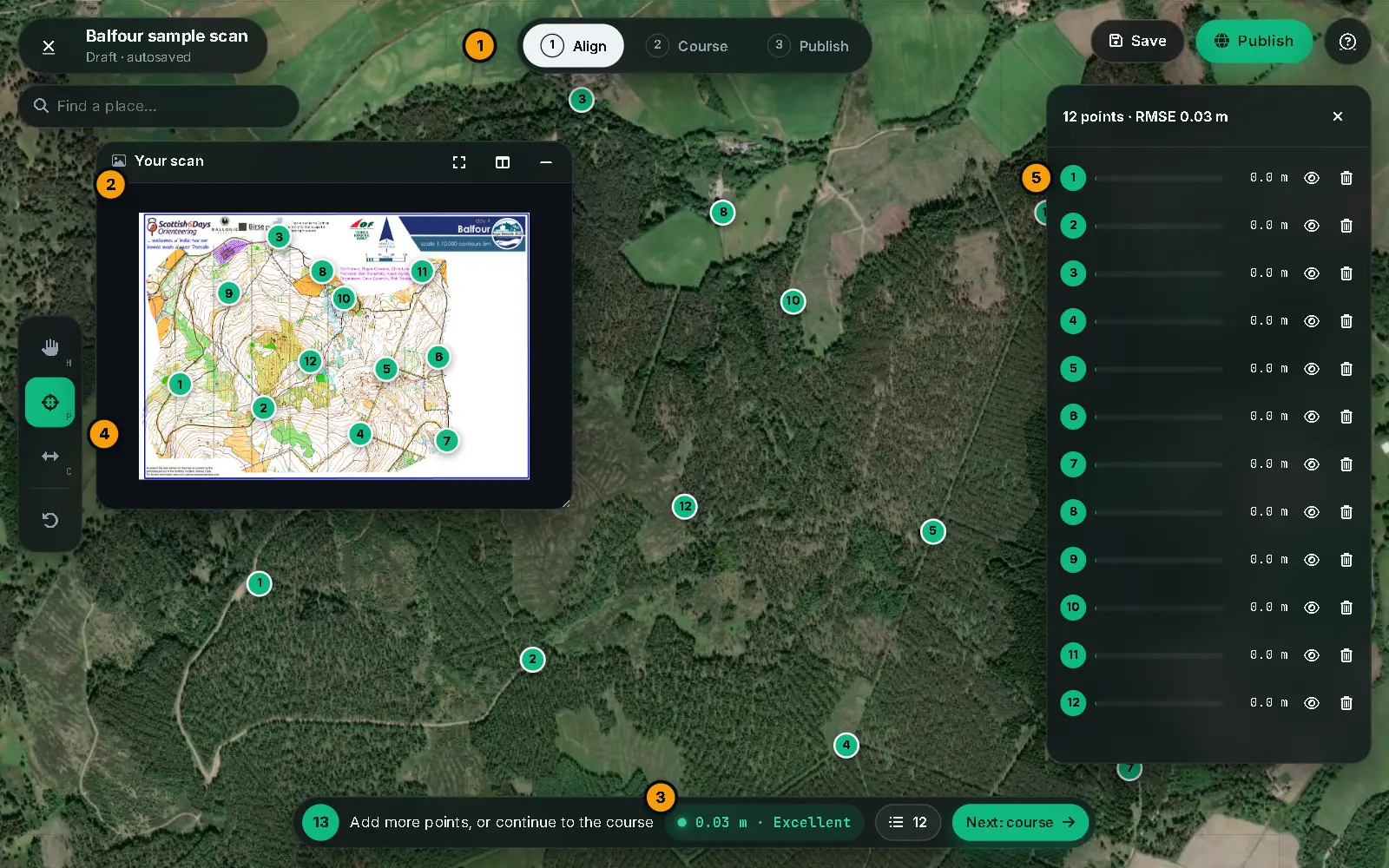
- Click a spot on one map, then the same spot on the other. Either order works. The first click leaves a pending point and outlines the other map to show where to click. Esc cancels it.
- Choose spots you can find on both: path junctions, buildings, the corner of a wall. Spread the points over the whole map, with some near the corners.
- After three points the fit is live: the Course and Publish stages open up, and the scan is drawn on the satellite.
Your scan is in a small window you can drag and resize. Its buttons make it fit the scan, fill half the screen (Split screen) or shrink away (Minimise). Find a place… moves the satellite map to an address or a name. Drag any pin to adjust a point.
The tools on the left are Pan (H), Match points (P), Swipe compare (C) and Undo.
#Read the fit
The pill at the bottom shows a number such as 0.62 m · Excellent. It is the typical error in metres, measured by leaving each point out in turn and seeing how far it lands when the map is fitted without it. This is much more honest than the error at a point itself, which is always close to zero.
| Typical error | Quality |
|---|---|
| under 1 m | Excellent |
| 1 to 2 m | Good |
| 2 to 4 m | Fair |
| 4 m or more | Poor |
With exactly three points there is nothing to leave out, so it asks for a fourth. The hints in the bar guide you: Add points near the corners for a better fit, then Add more points, or continue to the course.
#Find and fix a point that is off
With five or more points, oSplit warns Point N off by X.X m when one disagrees clearly with the rest. Press the warning (or choose Show the worst point in the palette) to open the point list and zoom both maps to it. Then either drag it to the right place, or press the eye to Ignore this point (it stays on the map, greyed out, but is left out of the fit), or the bin to delete it.
The point list shows every pair with its error bar and error in metres. Click a row to go to that point.
#Check it with swipe compare
Press C to compare. Drag the white handle to wipe between your warped map and the satellite. Roads, paths and buildings should line up on both sides.
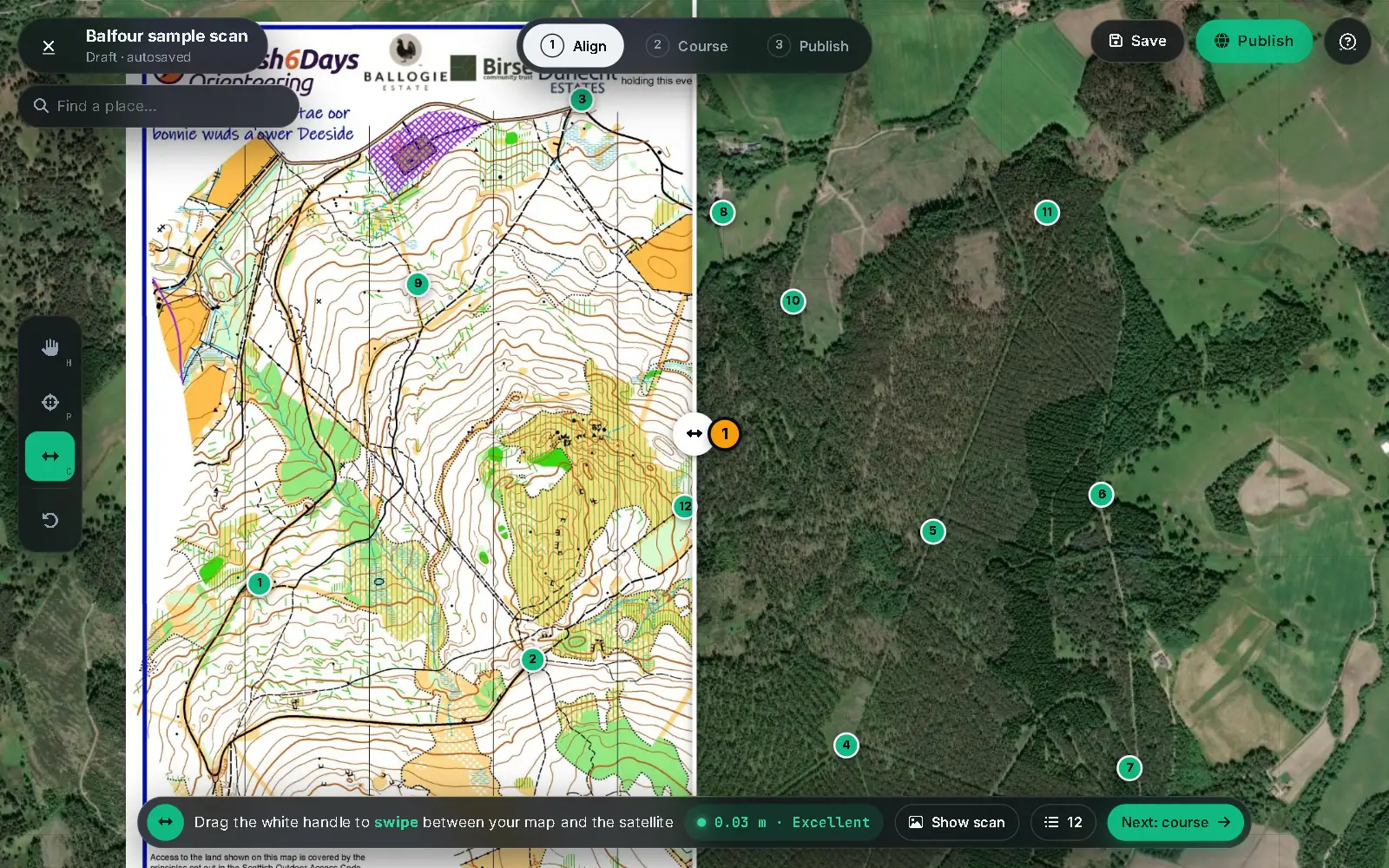
While you hover over one map, a dashed cross shows where that spot should be on the other: the ghost cursor. It helps you place the next point without searching.
When you are happy, press Next: course.
#Quality tips
- Use at least six points, and spread them: corners, edges and the middle.
- Avoid things that move or change: trees, vegetation edges, temporary tracks.
- If the fit is Fair or Poor, look for the point flagged as off first. One bad pair often spoils the rest.
- A scan with a lot of distortion needs more points than a clean one.