
Your account
Sign in without a password, manage your sign-in methods and devices, download your data, and delete your account.
You don't need an account to look at maps, replay races or use the Studio. Sign in to keep what you publish in one place, share it, and edit it from any device.
#Sign in
Press Sign in at the top right. You sign in on oSplit's own sign-in page and come straight back to where you were. There are no passwords: choose an email code, Google, Microsoft (personal accounts) or a passkey when it is offered.
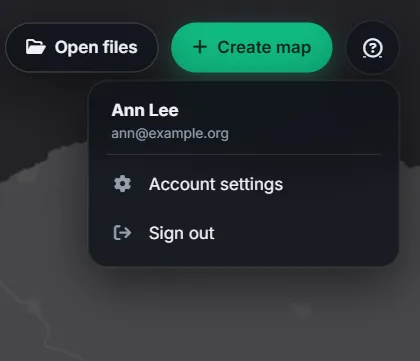
Once signed in, the button becomes a round badge with your initials. It opens a menu with your name and email, Account settings and Sign out. Signing out also ends your session on the sign-in page, which matters on a shared computer.
If you sign in while you are in the middle of something, it is kept for you. The Studio brings you back to the same project and stage. Tracks you were about to share are kept in your browser and the share form opens again.
#The Account sheet
Open it from Account settings (or press Ctrl + K and type "account"). It has these sections:
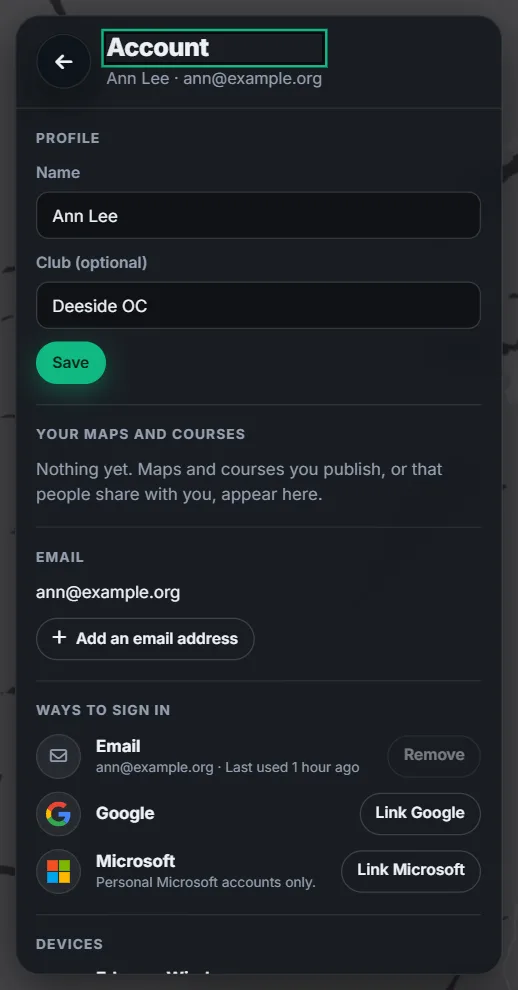
- Profile: your Name and Club (optional). They are used as the defaults when you share a track.
- Your maps and courses: everything you own or have been invited to, with your role (Owner, Editor or Viewer) and its visibility. If this browser still has the edit keys for courses you published before accounts existed, Claim N courses published from this browser brings them into your account.
- Your tracks: the GPS tracks you shared, with Edit and Remove, and Claim for tracks you shared without an account from this browser.
- Email: your main address. With several verified addresses you can choose which is the main one, or Add an email address.
- Ways to sign in: each way you can sign in, with when it was last used. Remove takes one away (you can't remove the last one). Link Google and Link Microsoft add them.
- Passkeys: add a passkey (you confirm with an email code, then your device offers to save it), or remove one.
- Devices: every device you are signed in on, with This device marked. Sign out ends one, and Sign out everywhere else ends all the others.
- Your data: Download my data gives you a file of everything stored about you, including your tracks. The privacy notice explains what is kept and why.
#Signing in again
For the sensitive things, such as removing a way to sign in, linking another, deleting your account or acting on someone else's content as an admin, you must have signed in within the last 15 minutes. If not, oSplit asks you to Sign in again, takes you back to the Account sheet, and you repeat the action. It is never repeated for you.
#Delete your account
Delete account… at the bottom of the Account sheet asks you to type DELETE to confirm. It tells you what will happen first:
- Your courses are deleted, and so are the maps only you used.
- A map that other people have courses on stays, without an owner, so their courses keep working. An admin looks after it.
- Your shared tracks are deleted, and your sign-in records are removed from the sign-in service.
- You are signed out everywhere.
It can't be undone.
#If you can't sign in
Messages appear on the page when you come back from the sign-in page. Common ones:
- You cancelled signing in. Press Sign in to start again.
- Signing in was interrupted or took too long. Please try again.
- That sign-in is already linked to another account. Sign in with it to use that account.
- Too many attempts. Please wait a few minutes and try again.
- Sign in at <address>. Some addresses, such as a preview site, can't be used to sign in. Use osplit.app.
See Questions and problems for more.